Running trip-related reports
Who can do it: Service provider, Customer
Where: Wialon Platform FleetSpace
In Wialon Platform FleetSpace, you can run reports on trips and parking intervals. Here you can learn how to generate these reports and understand their results.
Running a report
To run a report, follow these steps:
- Open the Reports page.
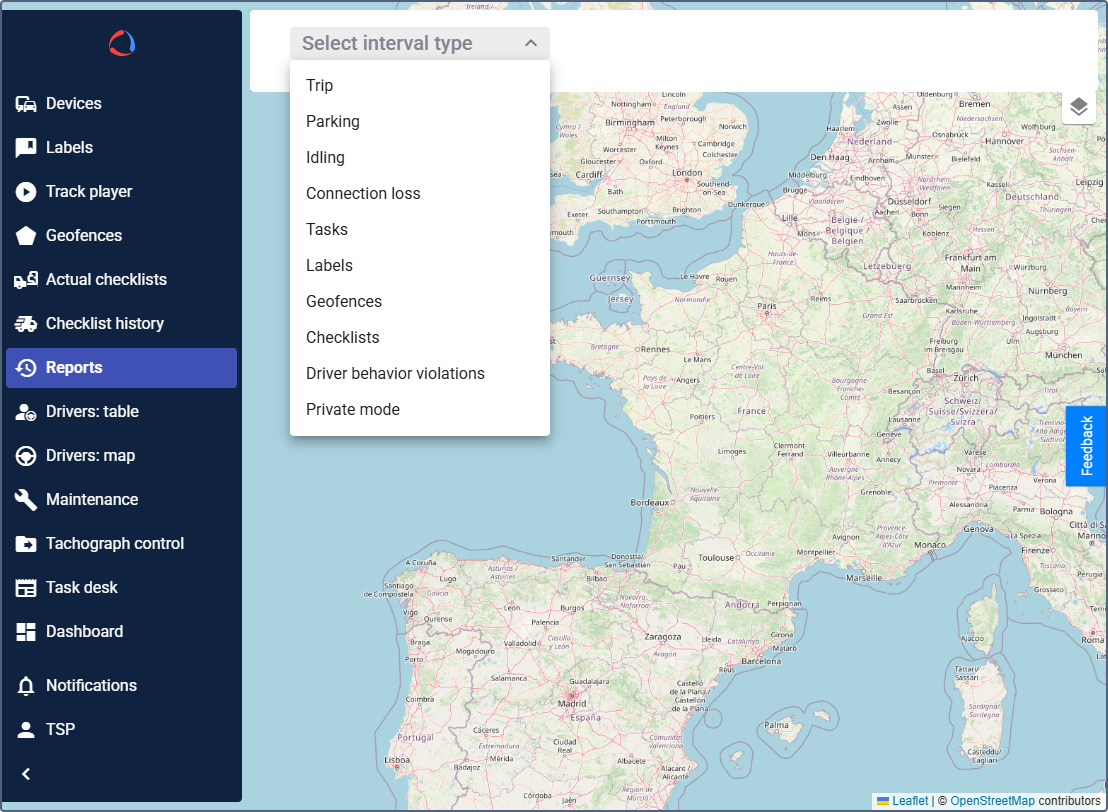
- In the first drop-down list, select the report type: Trip or Parking.
- Click on the date range field.
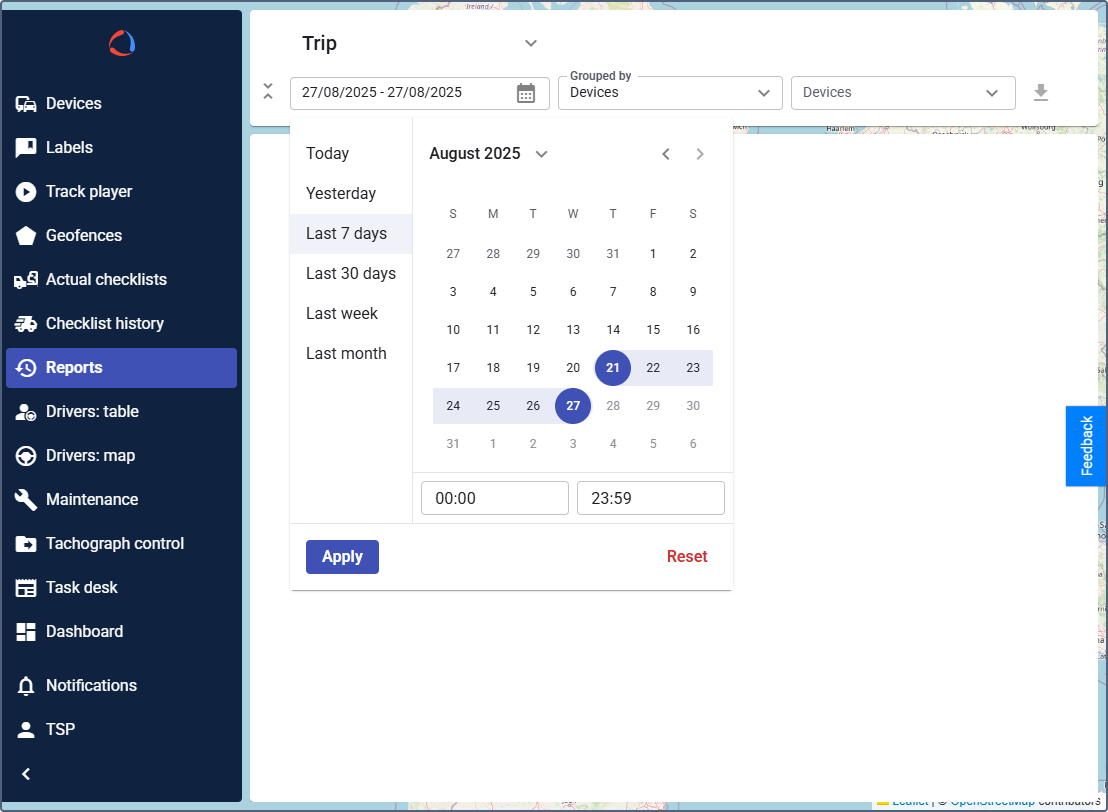
- Specify the report period in the calendar. You can select one of the predefined intervals or specify the start and end date and time manually.
- Click Apply.
- In the Grouped by drop-down list, select whether you want the report results to be grouped by drivers or devices.
- In the last drop-down list, select the drivers or devices you want to include in the report (one or multiple). To select all items, check the box at the top of the list.
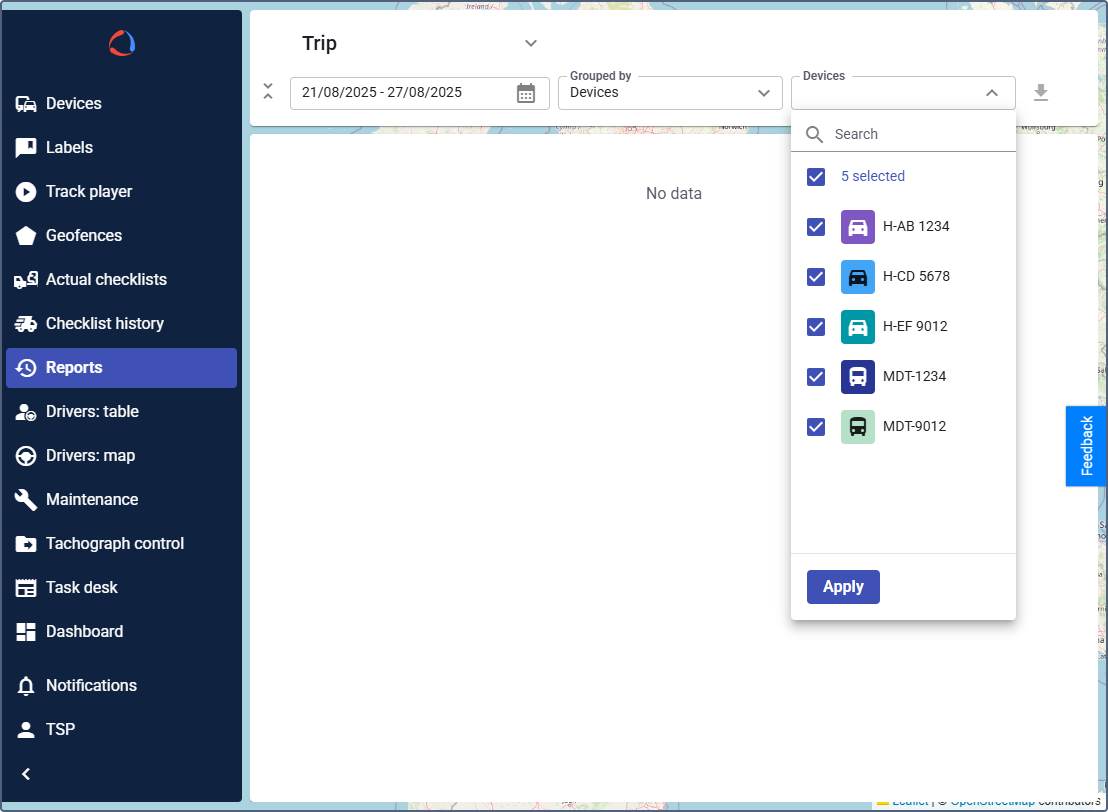
- Click Apply to confirm your selection.
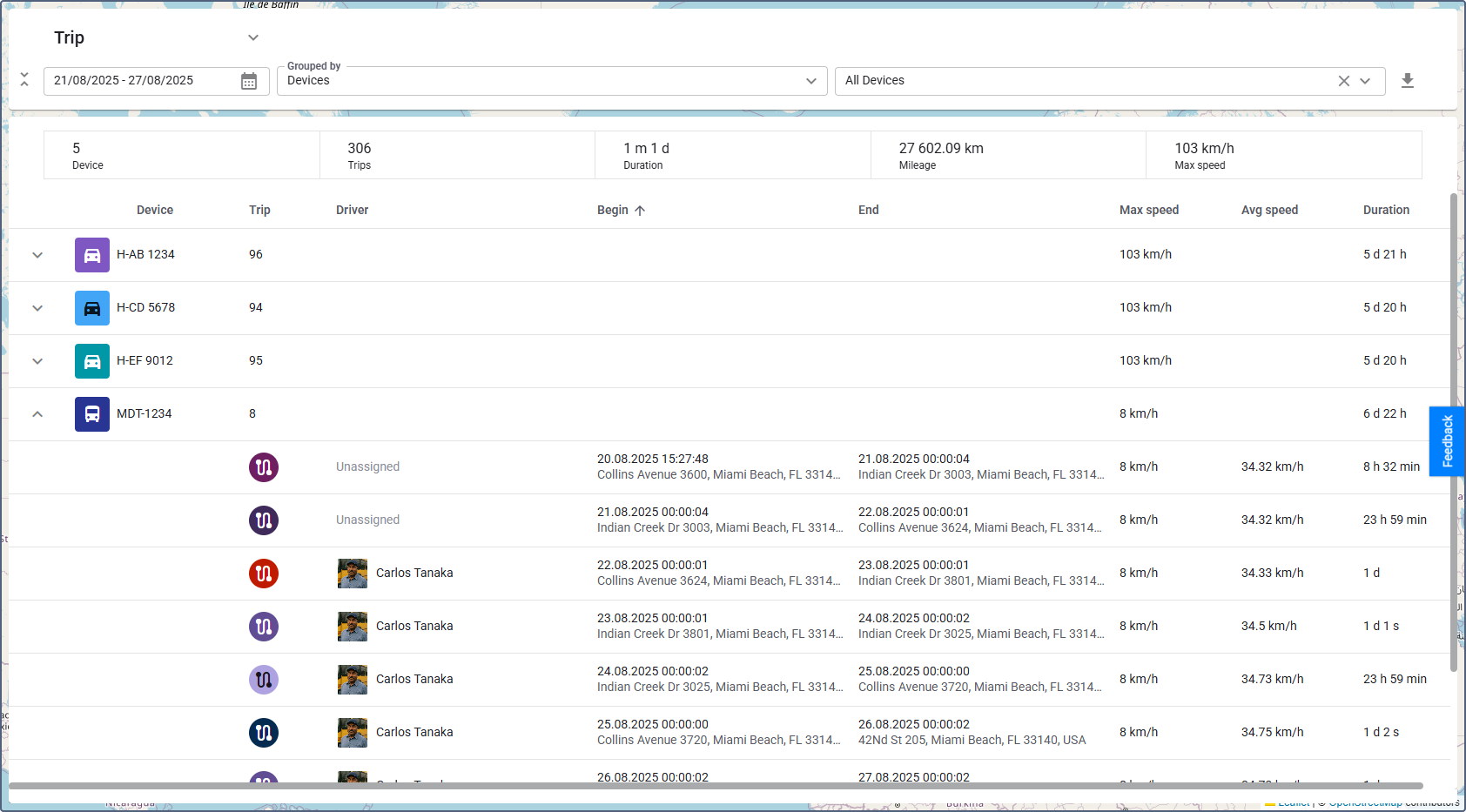
The report is generated automatically based on your configuration. You can navigate to other pages and return to your report.
You can also see the trips and parking intervals marked on the map. To switch between the map and report table, use the buttons at the top of the page.
To download the report in CSV format, click the CSV button.
Trip report
The Trip report provides both a summary of all trips and a detailed breakdown of the data.
Trip summary
At the top of the report, you can see a summary section with key statistics for the selected period:

- Drivers: Number of drivers included (only if grouped by drivers).
- Device: Number of devices included.
- Trips: Total number of all trips.
- Duration: Total duration of all trips.
- Mileage: Total distance covered by the devices.
- Max speed: Highest speed reached by any device.
Detailed trip information
Below the summary, a detailed table lists the trips grouped by device or driver.
To view the individual trips of a specific device or driver, expand the desired row.
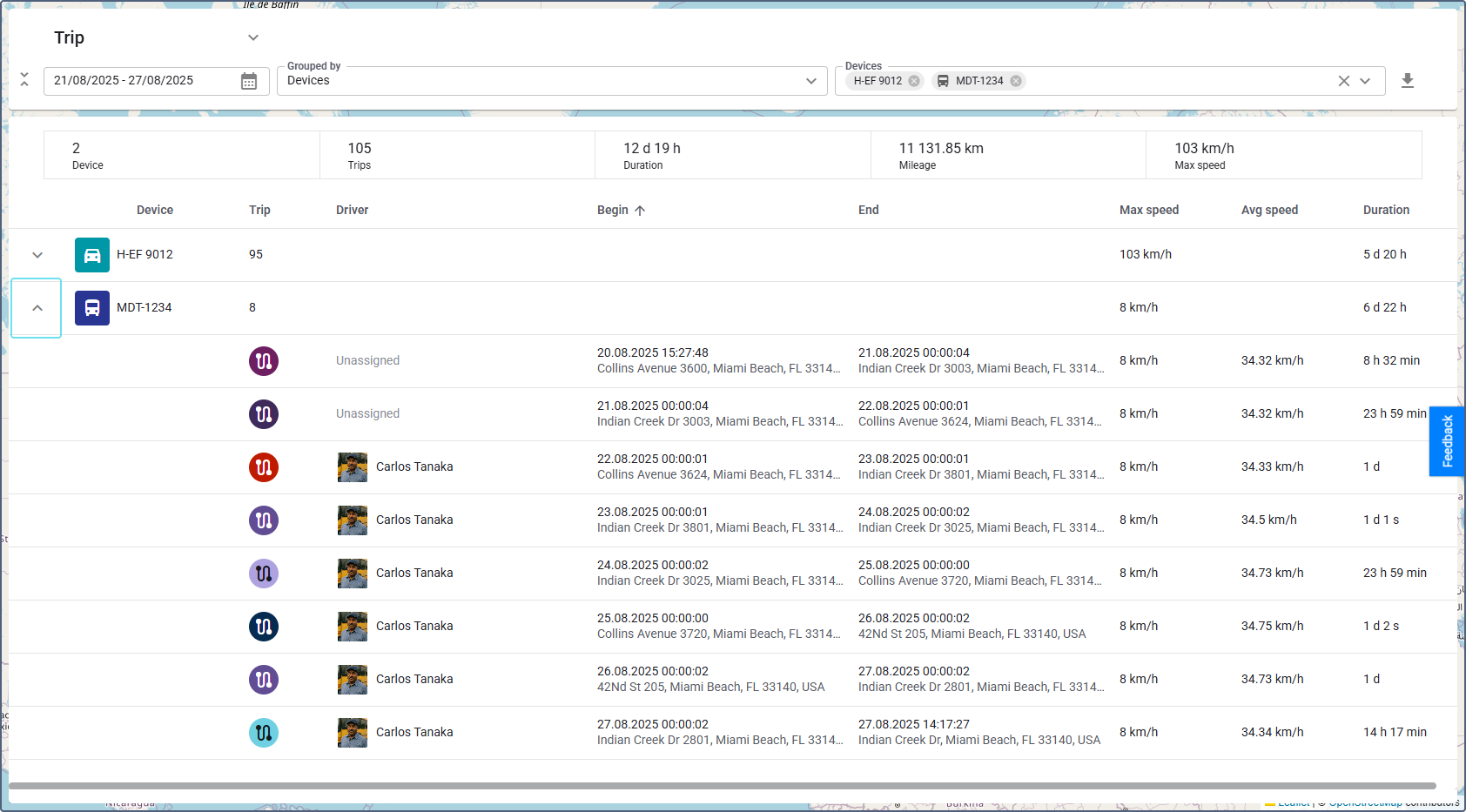
When grouped by device, the table includes the following information:
| Column | Description |
|---|---|
| Device | Device name (expand/collapse to view trips). |
| Trip | Total number of the device trips. Displayed in grouped rows. |
| Driver | Name of the driver assigned to the vehicle during the trip. Displayed in expanded rows. |
| Begin | Start time and location. Displayed in expanded rows. |
| End | End time and location. Displayed in expanded rows. |
| Max speed | Highest speed reached by the device in all trips (for grouped rows) or in a specific trip (for expanded rows). |
| Avg speed | Average speed of the trip. Displayed in expanded rows. |
| Duration | Total time of all trips (for grouped rows) or a specific trip (for expanded rows). |
| Mileage | Total distance of all trips (for grouped rows) or a specific trip (for expanded rows). |
When grouped by driver, the table includes the same information, but the Device and Driver columns are swapped.
Parking report
The Parking report provides both a summary of all parking intervals and a detailed breakdown of the data.
Parking summary
At the top of the report, you can see a summary section with key statistics for the selected period:
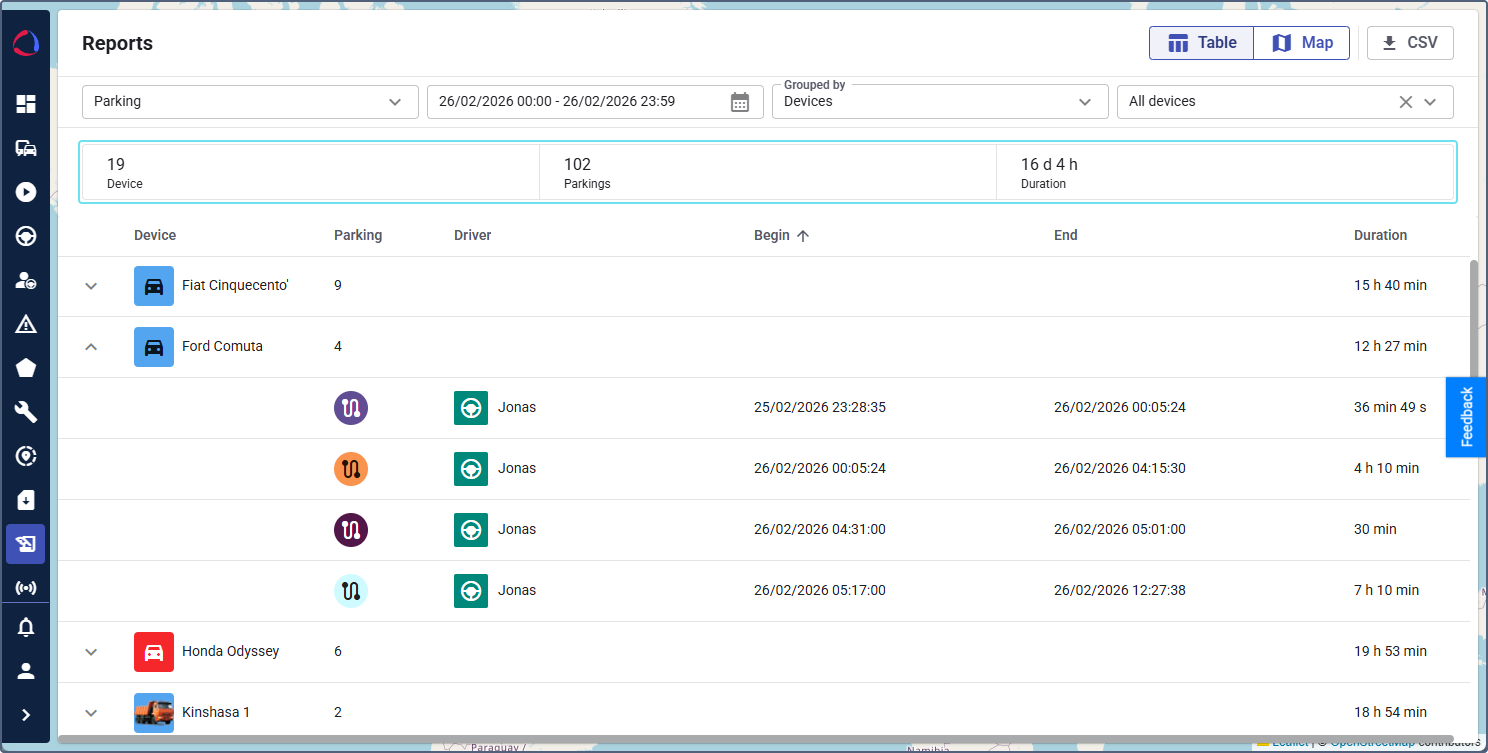
- Drivers: Number of drivers included (only if grouped by drivers).
- Device: Number of devices included.
- Parking: Total number of all parking intervals.
- Duration: Total parking duration.
Detailed parking information
Below the summary, a detailed table lists the parking intervals grouped by device or driver.
To view the individual parking intervals of a specific device or driver, expand the desired row.
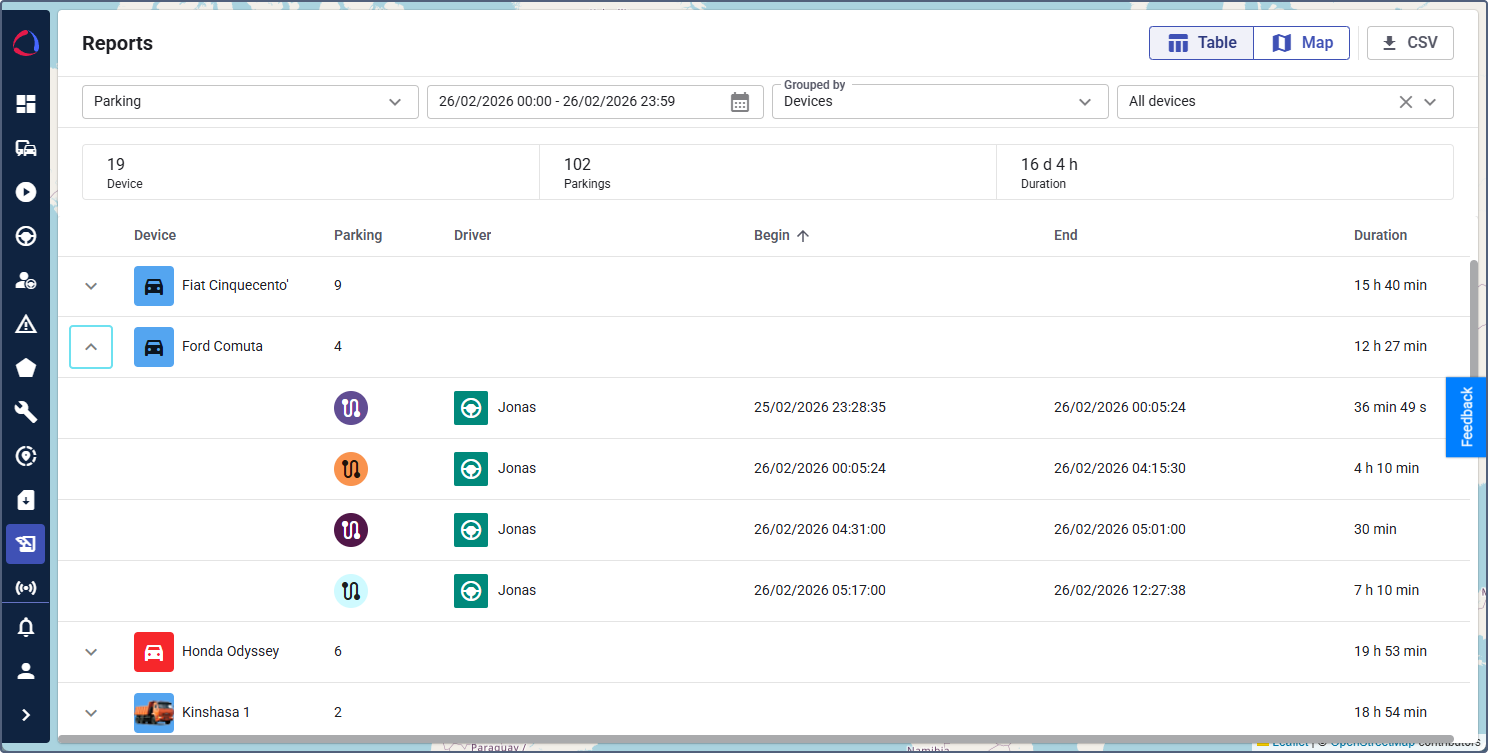
When grouped by device, the table includes the following information:
| Column | Description |
|---|---|
| Device | Device name (expand/collapse to view parking intervals). |
| Parking | Total number of the device parking intervals. Displayed in grouped rows. |
| Driver | Name of the driver assigned to the vehicle during the parking interval. Displayed in expanded rows. |
| Begin | Start time and location. Displayed in expanded rows. |
| End | End time and location. Displayed in expanded rows. |
| Duration | Total time of all parking intervals (for grouped rows) or a specific parking interval (for expanded rows). |
When grouped by driver, the table includes the same information, but the Device and Driver columns are swapped.