Configuring driver behavior widgets in FleetSpace
Who can do it: Service provider
Where: Wialon Platform FleetSpace
Driver behavior information, often presented through widgets, is available on various sections in Wialon Platform FleetSpace. The specific widgets displayed are configured in Wialon Platform Studio.
On the “Devices” page
On the Devices page, you can add the Driving score by device chip to the device list and various widgets to the device details.
Driving score by device (chip)
The widget displays the total driving score for a selected period. You can compare the score to that of the previous period using the Show difference between previous periods toggle. To add the chip to the device list, follow these steps:
-
In Wialon Platform FleetSpace, navigate to the Devices page.
-
Click the icon
 in the sidebar to enable the editor mode.
 -
Click the Add widget button in any device row.
-
Click
 in the Driving score by device (chip) row.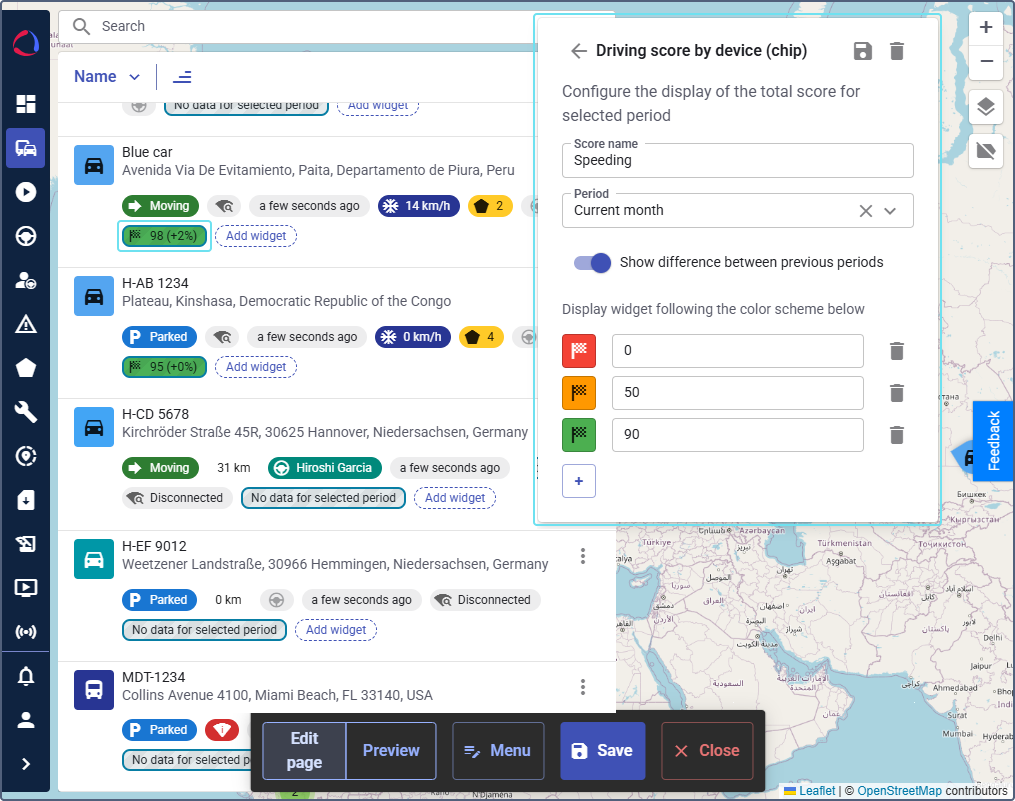
-
Enter the Score name.
-
In the Period field, select the period of the interval: Current month, Current week, or indicate the number of days if the Last days option is selected.
-
If necessary, use the toggle Show difference between previous periods. The score difference will be displayed as a percentage.
-
Associate colors to the score values. Click
to add a new row to the colors and values scheme. To remove the row, click the icon  .
.
Configuring widgets for the device details
In the device details, click on the device card and open the content section, or click Add widget in the bottom to see the available driver behavior widgets.
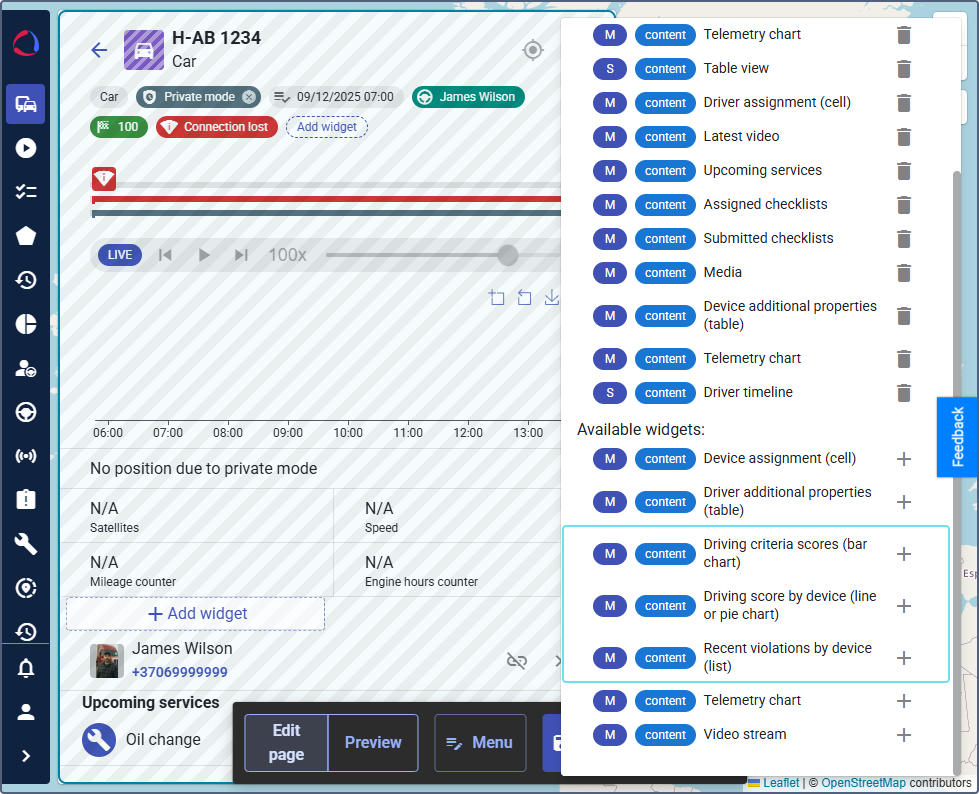
- To add a widget: Click the icon next to the desired widget in the Available widgets list.
- To remove a widget: Click the icon next to a widget in the Added widgets list.
Driving criteria scores (bar chart)
The widget displays detailed driver behavior scores using progress bars.
To configure the widget:
- Add a title. The
{{period}}variable in the chart title will be replaced by the period you select in the next step. - Select the Period (for example, Current month).
- If necessary, use the toggle Show difference between previous periods.
Driving score by device (line or pie chart)
The widget displays the total driving score for a selected period.
To configure the widget:
- In the Title field, enter a name for the widget. For example, Driving score for
{{period}}. The value in curly brackets will be replaced by the period you select in the next step. - Select the Period.
- Choose the Visualization type: chart or pie.
- If necessary, use the toggle Show previous period score.
Recent violations by device (list)
The widget lists recent driver behavior violations.
To configure the widget, select the desired period from the dropdown list: Current month, Current week or Last days.
On the “Drivers online” page
- Log in as a customer to Wialon Platform FleetSpace.
- Navigate to the Drivers online page.
- Click on a specific driver in the list to open its details.
- Enable the editor mode.
- Ensure the necessary workspace is selected.
- Click on the driver card to select a widget.
Configuring chips and widgets for the driver details
-
Click on the driver card in the editor mode to open the Driver card settings.
-
Under the Chip view section on the top, you can add widgets that appear as chips next to the driver’s name.
- To add a widget: Click the icon next to the desired widget in the Available widgets list.
- To remove a widget: Click the icon next to a widget in the Added widgets list.
- To add a widget: Click the icon
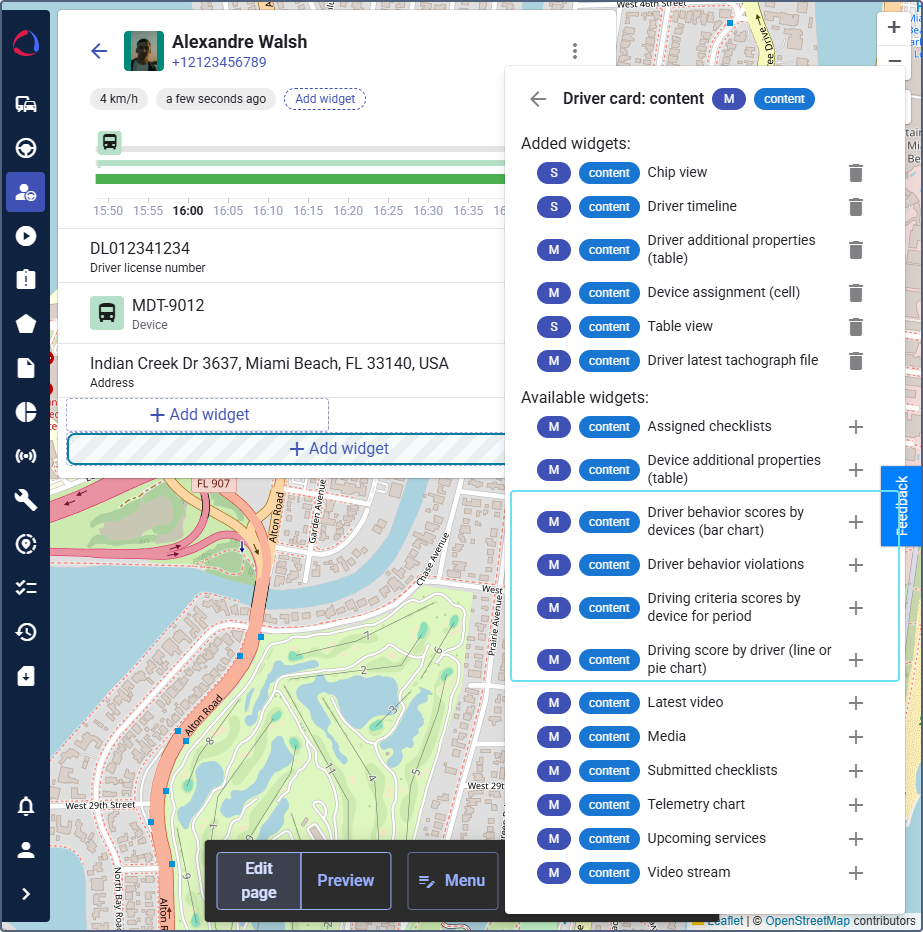
Uninterrupted driving time (chip)
The chip displays the uninterrupted driving time for a driver.
Driving score by driver (chip)
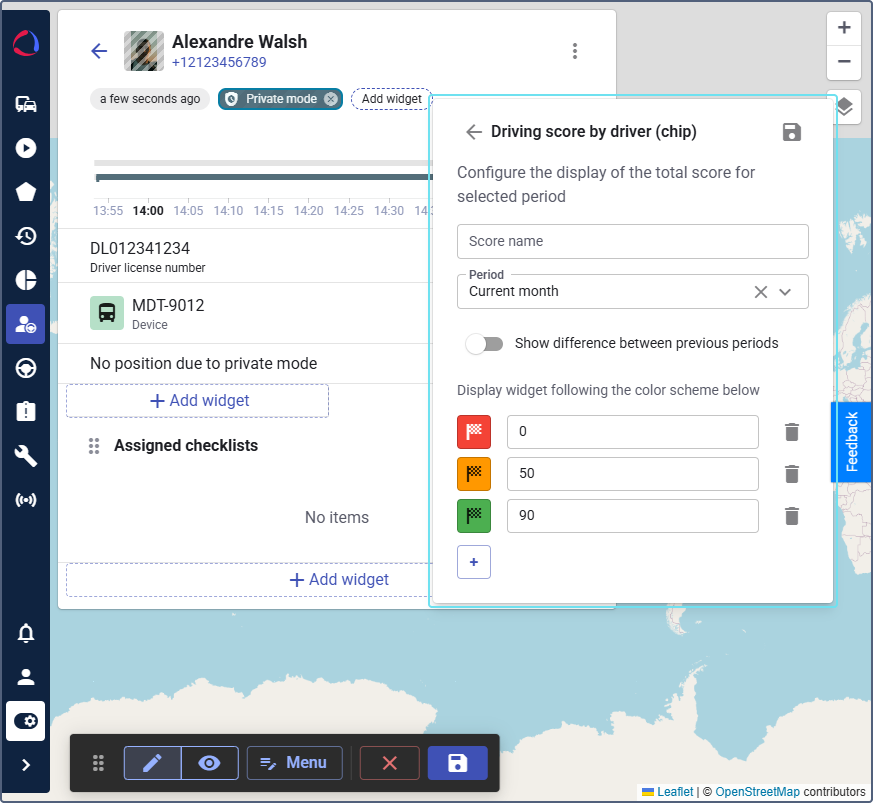
The chip displays the total driving behavior score calculated for all devices driver was assigned to during the selected period. You can compare the score to that of the previous period using the Show difference between previous periods toggle.
To configure the Driving score by driver chip:
-
Click Add widget in the Chip view section of the device details.
-
In the Score name field, enter the score name.
-
In the Period field, select the period of the interval: Current month, Current week, or indicate the number of days if the Last days option is selected.
-
If necessary, switch on the Show difference between previous periods option.
-
Associate colors to the score values. Click
to add a new row to the colors and values scheme. To remove the row, click the icon .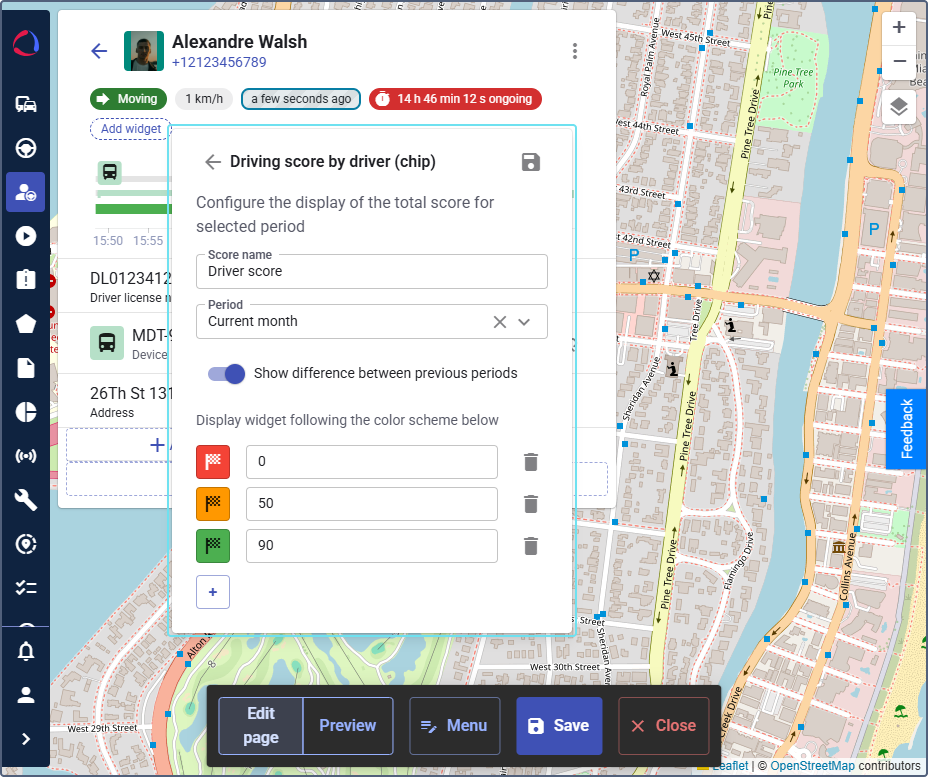
The added chip shows the driving behavior score for the selected period.
Driver behavior widgets in the driver details
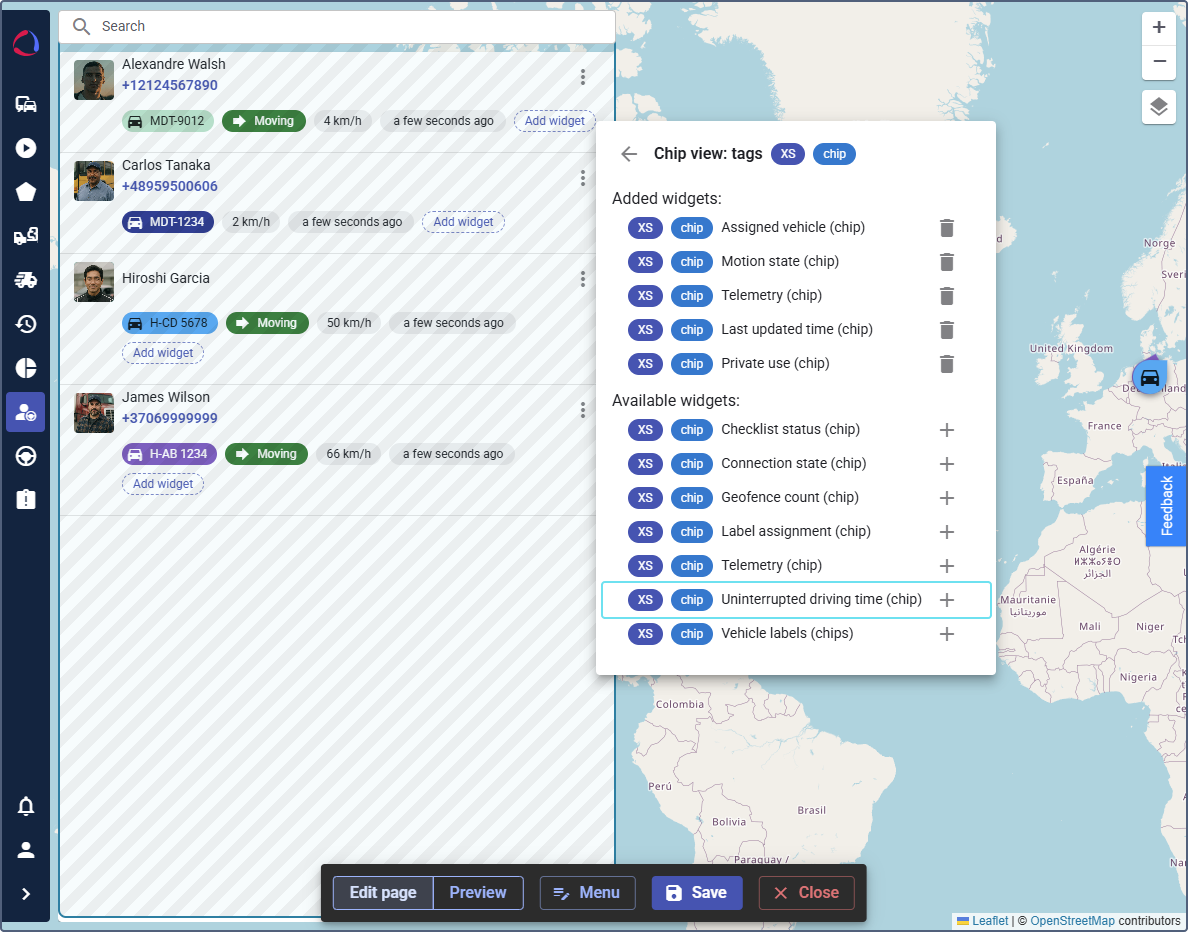
To configure the following widgets, enter a Title and select the period for which you want to display the data. To compare these data to those of the previous period, enable the toggle options in the widget settings such as Show difference between previous periods or Show previous period score.
Driver behavior scores by devices (bar chart)
The widget shows driving behavior scores for each device the driver was assigned to during specified interval, without specifying criteria score.

Recent violations by driver (list)
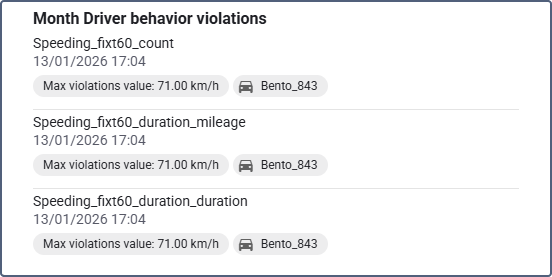
The widget lists 10 most recent violations detected for the driver for all device assignments with indication of the violation parameters and assigned vehicle. The violations are sorted in descending order.
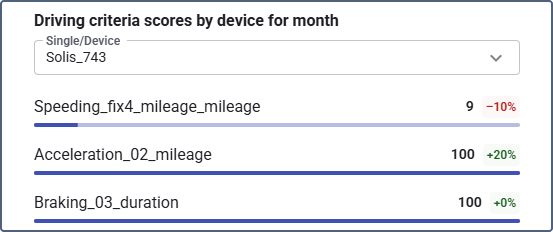
Driving criteria scores by device for period
Shows the criteria scores for each selected device the driver was assigned to during the specified interval.
Driving score by driver (line or pie chart)
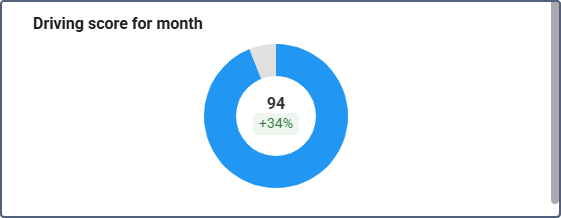
The pie chart displays the driver behavior score calculated for specified period and all devices the driver was assigned to during the period, with or without comparison to previous interval.
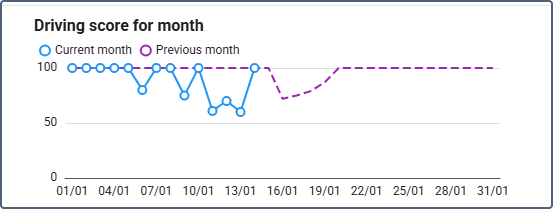
The line chart displays the driver behavior score calculated for each day in specified period and all devices driver was assigned to during that period, with or without comparison to previous interval.
Configuring actions for the driver list
- Click on the driver list in the editor mode and go to the Driver list entry settings.
- Under the Actions section, you can add actions that are accessible from the driver list:
- Driver assign links: Adds a link to assign a driver.
- Driver profile links: Adds a link to view the driver’s profile.