Applying telemetry presets to devices
Who can do it: Service provider
Where: Wialon Platform Studio
A telemetry preset is a reusable configuration that groups multiple sensor templates. Applying a telemetry preset ensures standardized sensor configurations across many devices of the same or similar models.
This guide explains how to apply a telemetry preset to a single device. See how to apply telemetry presets to devices in bulk.
Applying a telemetry preset to a device
To apply a preset to an individual device, follow these steps:
-
Navigate to the Devices page.
You can also apply a telemetry preset to a device that belongs to a customer from the Customers page. To do this, select the customer who owns the devices you want to manage, navigate to the Devices tab and continue following this instruction.
-
Click on the required device in the list to open its properties.
-
Go to the Sensors tab.
-
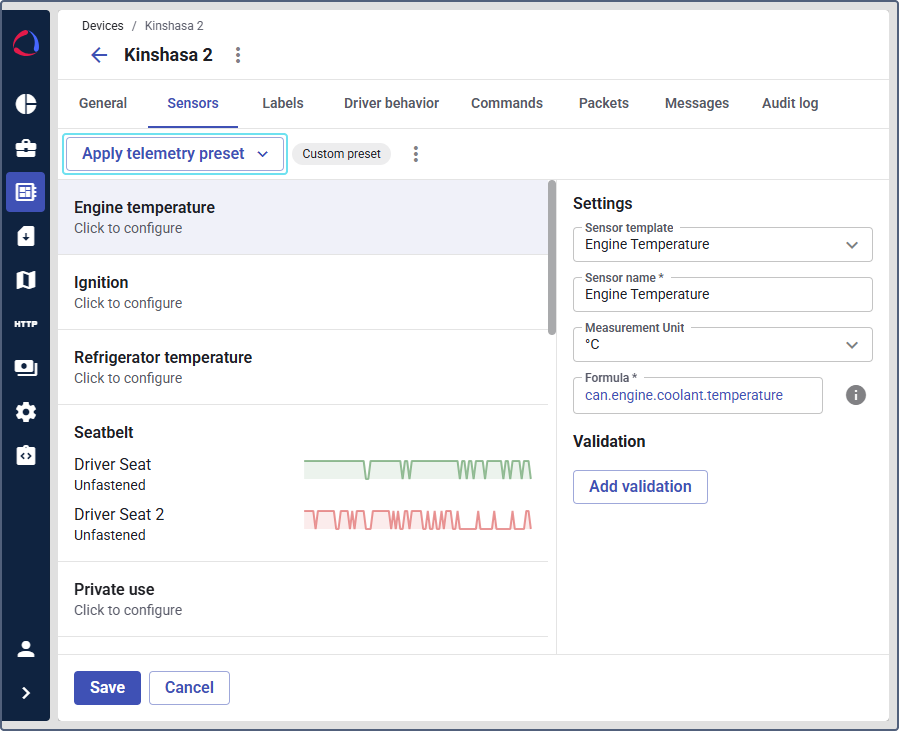
Click Apply telemetry preset.
-
Select the required telemetry preset from the list.
-
Click Apply. The collection of sensor configurations from the preset will be applied to the device.
-
(Optional): After applying the preset, you can modify the sensor settings. Modifying the sensor settings doesn’t affect the telemetry preset. If you want to save these new configurations for future use, click the icon
 and select Save as new telemetry preset.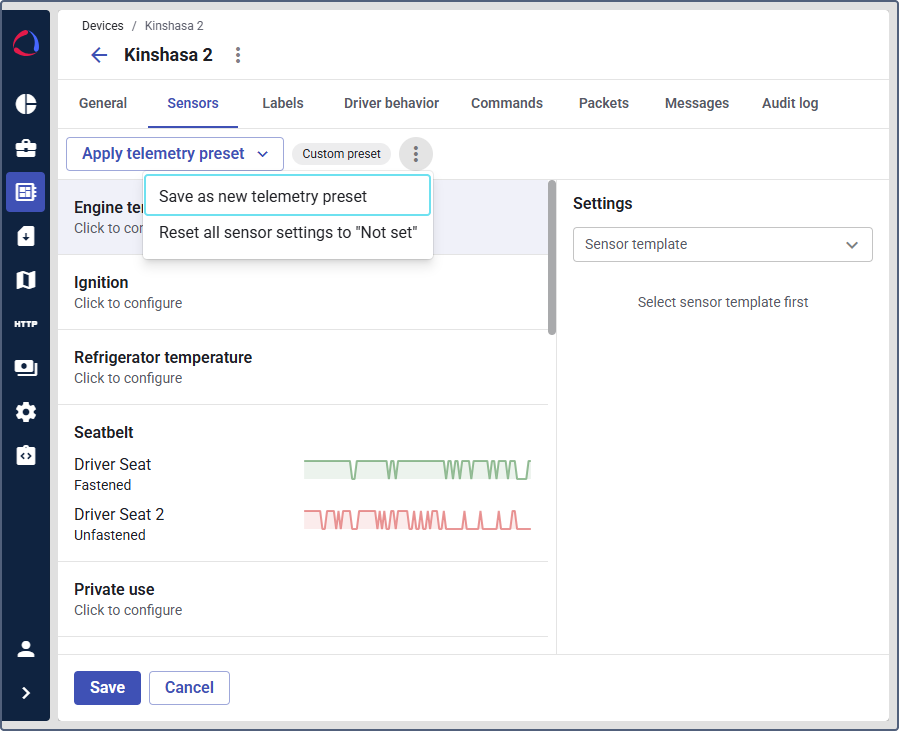
-
Click Save to confirm the changes for the device.
Clearing sensor settings
If you need to remove all sensor configurations from a device, you can reset them.
-
Navigate to the device properties and open the Sensors tab.
-
Click the icon
.
-
Select Reset all sensor settings to “Not set”.
-
Click Save.
All sensor configurations for the device will be cleared.