Customizing task details
Who can do it: Service provider
Where: Wialon Platform FleetSpace
To enhance the task details page for your customers, you can add various widgets that provide real-time data, historical context, and quick access to device information.
Customization steps
To customize the task details page for a customer, follow these steps:
- Log in to Wialon Platform FleetSpace as the customer for configuration purposes.
- Navigate to the Task desk page.
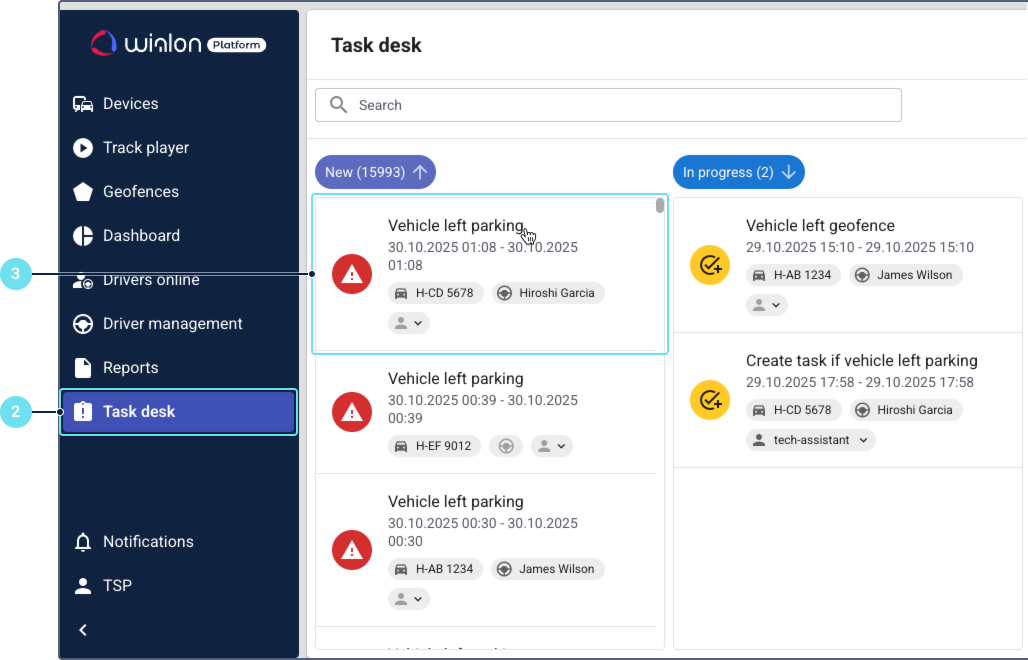
- Click on any task to open its details.
- (Optional): Click on the service provider name in the left bottom corner to ensure the required workspace is selected. If you need to create a new workspace, see the guide on creating a new workspace.
- Click the icon
 in the sidebar to enable the editor mode. The page is now ready for customization.
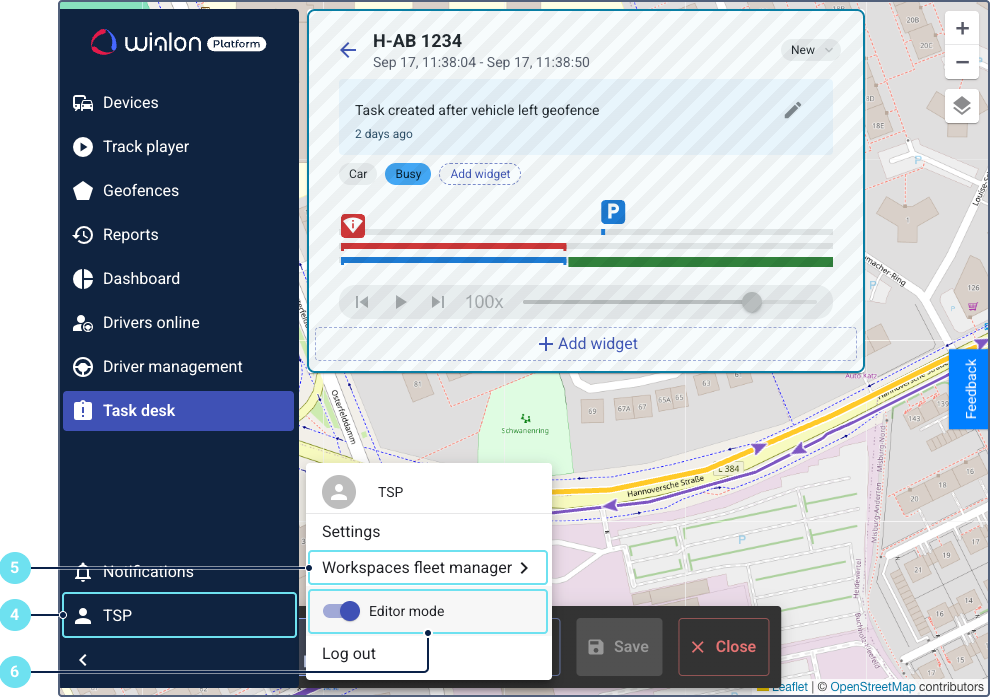
- Click Add widget.
- Select and configure the required widdgets. See the Available widgets section below for details on each widget type.
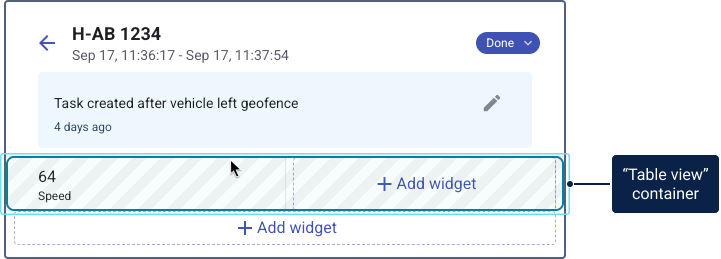
To add table widgets (like Counter (cell), Sensor (cell) and Telemetry (cell)), you first need to add a Table view container.
- After adding and configuring all widgets, click the button
 in the editor mode toolbar at the bottom of the page.
Available widgets
You can add the following widgets to the task details page:
- Media: Displays a list of media files (videos and photos) with a calendar for navigation.
- Timeline: Provides a chronological view of events.
- Track player: Plays back the historical track of a device.
- Telemetry chart: Visualizes telemetry data over time in a chart format. See how to configure this widget in the Adding the “Telemetry chart” widget section.
- Table view (container): A container required to hold table widgets.
- Counter (cell): Displays data from a pre-configured sensor of the Engine hours counter or Mileage counter type. Requires the Table view container. See how to configure this widget in the Configuring the “Counter (cell)” widget section.
- Sensor (cell): Displays data from a pre-configured sensor. Requires the Table view container. See how to configure this widget in the Configuring the “Sensor (cell)” widget section.
- Telemetry (cell): Displays telemetry data, including the value and unit of a parameter sent by a device. Requires the Table view container. See how to configure this widget in the Configuring the “Telemetry (cell)” widget section.
See how to use task detail widgets in the Widgets for analyzing task events section.