Logging in to Wialon Platform
This guide describes the login procedures for different Wialon Platform applications (Wialon Platform Studio, Wialon Platform FleetSpace, Wialon Driver) and user roles (Telematics Service Provider, customer, driver):
- Logging in to Wialon Platform Studio
- Logging in to Wialon Platform FleetSpace for configuration purposes
- Logging in to Wialon Platform FleetSpace as customer user
- Logging in to Wialon Platform FleetSpace using the identity provider credentials
- Logging in to Wialon Driver
Logging in to Wialon Platform Studio
Wialon Platform Studio is the application used by the service providers to manage customer accounts, devices, and all platform settings. Access to Wialon Platform Studio is granted upon invitation and allows for full control over the platform’s features and configurations.
To receive access to Wialon Platform Studio, you must confirm your email address and set the new password. To do this:
- Open the invitation email from the Platfrom. The invitation is sent to the email address you indicated when requested the service provider access to Wialon Platfrom.
- Click Accept the invitation to confirm your email address.
- Open the password change email.
- Click Confirm to reset your password.
- Set the new password.
Now you can log in to Wialon Platform Studio using the email and password you created. In Wialon Platform Studio, you can manage accounts of your customers and configure the features for them. To set the fuctionalities and the interface layout of Wialon Platform FleetSpace for your customers, you must log in to FleetSpace for configuration purposes.
Logging in to Wialon Platform FleetSpace for configuration purposes
As a service provider, you can log in to a customer’s application to configure the interface, workspaces, assist with support, or troubleshoot issues. To do this:
-
Log in to Wialon Platform Studio following the steps above.
-
Navigate to the Customers section.
-
Select the customer for whom you want to configure Wialon Platform FleetSpace.
-
Locate and click the Log in as button associated with the customer account.
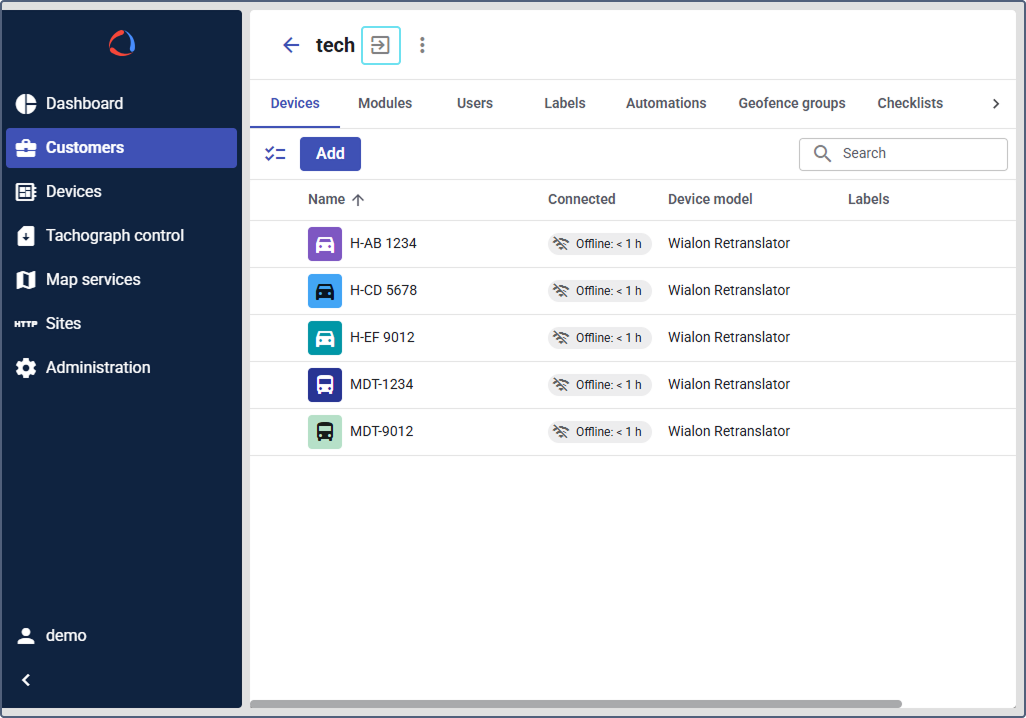
You can also use the Log in as button in the customers list. To locate the button, hover over the customer row in the list.

Logging in to Wialon Platform FleetSpace as customer user
Wialon Platform FleetSpace is the primary application for customers, such as fleet managers, to monitor and manage their vehicles and drivers. The functionalities and interface of this application are configured by the service provider, and customers log in using credentials provided to them. Customers can see only the functionality allowed and configured for them by the service provider.
To log in to Wialon Platform FleetSpace using the username and password:
- Open the Wialon Platform FleetSpace application.
- Enter the username provided by your Service Provider in the corresponding field.
- Click Log in.
You can set the simplified logging in process to Wialon Platform FleetSpace using the account in other services, like Google. To do this, the customer who needs the simplified login, must confirm their identity provider credentials.
Logging in to Wialon Driver
Wialon Driver application is used by drivers to interact with the system. Before a driver can log in, a customer (the fleet manager) must create a driver’s profile in Wialon Platform FleetSpace and provide them with the login credentials.
Creating a driver profile
-
Log in to Wialon Platform FleetSpace.
-
Navigate to the Driver management page in the navigation menu.
-
Click Add to add a new driver or select the existing one from the list.
-
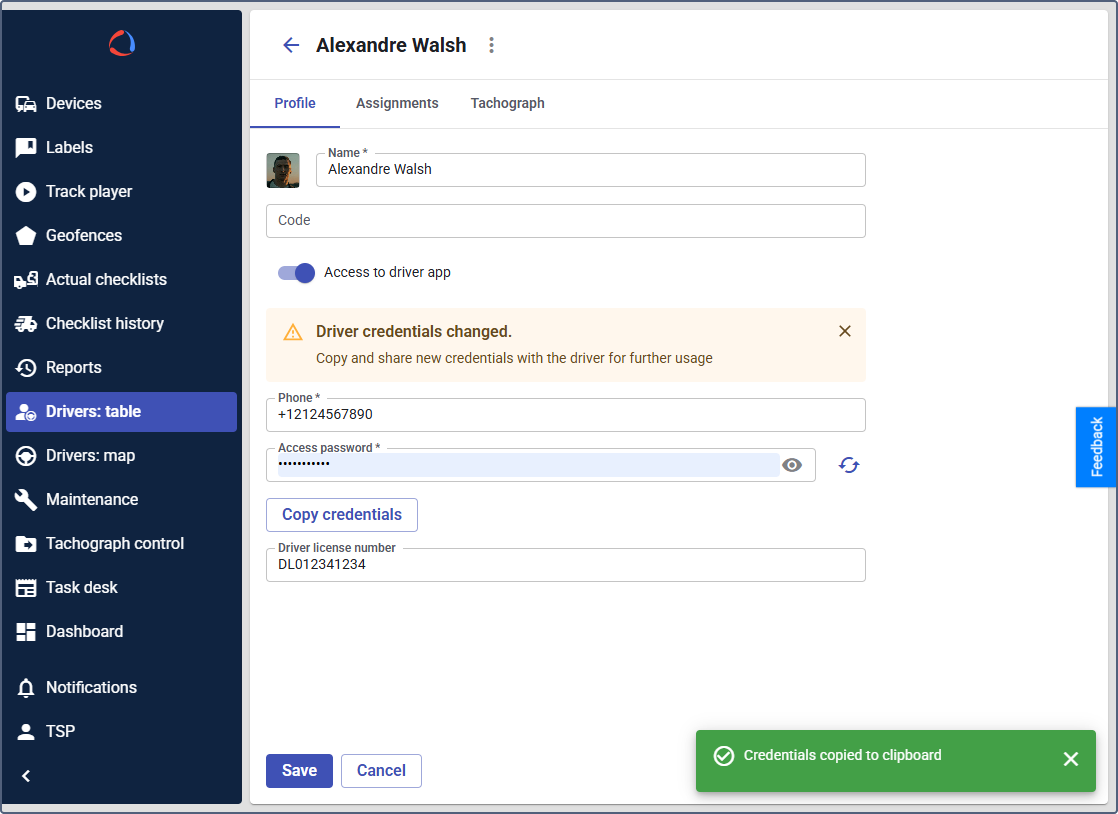
Create a new driver by filling in the profile details:
- name
- unique tachograph code
- phone number
- access password
For a detailed guide on creating drivers, see the Managing a driver profile page.
-
Click Copy credentials to copy the login information.
-
Provide these credentials to the driver.
See the guide for signing in to Wialon Driver on the Logging in to Wialon Driver page.