Inviting users with specific roles to Wialon Platform
Who can do it: Service provider
Where: Wialon Platform Studio
As a service provider, you can invite other users with specific roles to Wialon Platform. These roles may include administrator, operations manager, customer specialist, or viewer. Depending on their role, users have different levels of access to features and information within Wialon Platform.
To invite a user to Wialon Platform, follow these steps:
-
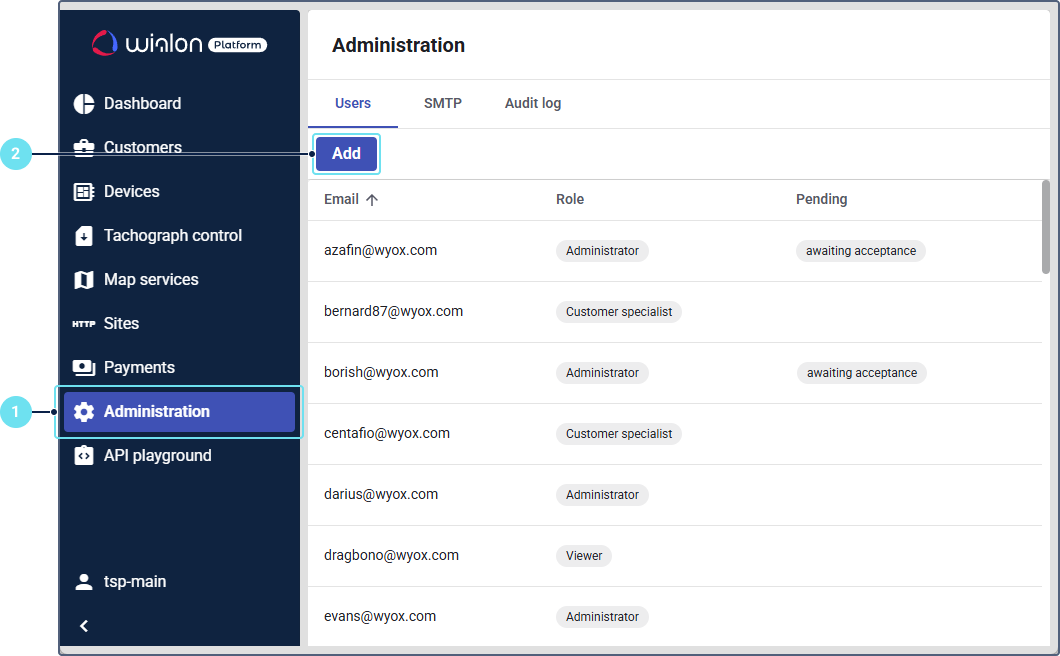
In Wialon Platform Studio, open the Administration page.
-
Click Add.
-
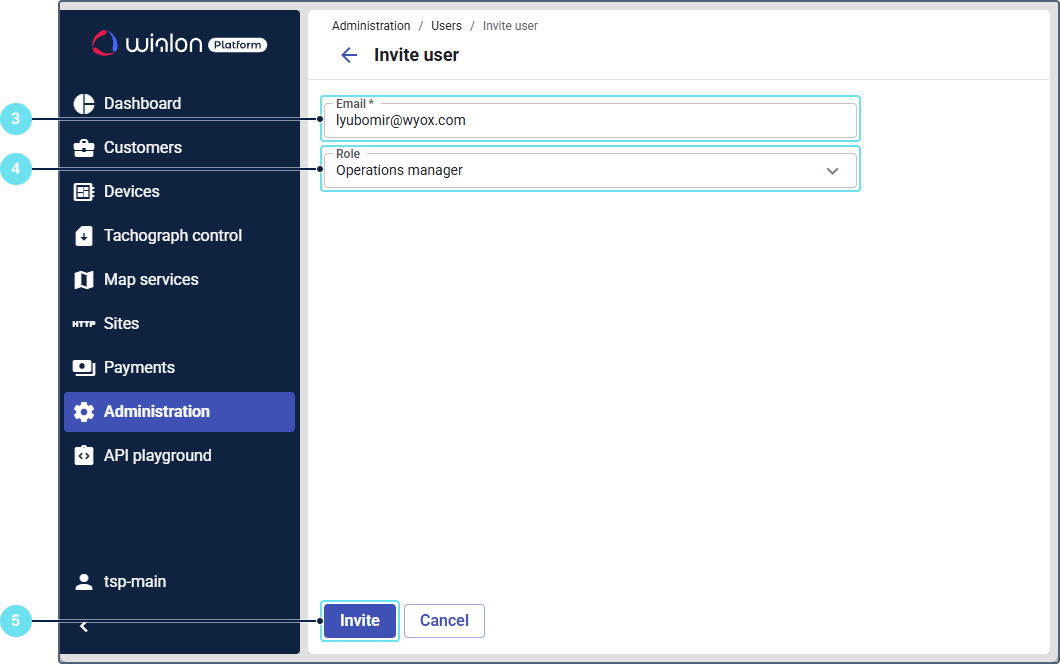
Enter the email address of the user you want to invite.
-
Select the role of the user, depending on the access level you want to grant.
Role Access level Administrator Has full access to all features, including billing and user role management. Operations manager Has full access, except for managing billing and assigning the Administrator role. Customer specialist Can view all sections and manage only customer-related settings. Viewer Can view all information in the system, except billing. -
Click Invite.
After that, a password change link is sent to the specified email address. The recipient can follow this link to set their password and log in to Wialon Platform Studio. The link is valid for 7 days.
All the invited users are displayed on the Users tab of the Administration page. The users who haven’t used the link yet are indicated by the awaiting acceptance mark.
To copy the sent link, hover over the user row, click the icon  and select Copy invitation URL.
To remove an invited user and revoke their access, hover over the user row, click the icon and select Delete.