Configuring automations to create tasks
Who can do it: Service provider
Where: Wialon Platform Studio
The Task desk in Wialon Platform FleetSpace displays tasks that require attention. These tasks are automatically generated by automations configured in Wialon Platform Studio. To ensure that specific events appear on the Task desk page, you need to first create an action template for initiating a task, and then create an automation that uses this action template.
This page describes how to configure an action template and an automation to generate tasks that will be visible on the Task desk in Wialon Platform FleetSpace.
Step 1: Navigating to the “Automations” tab
-
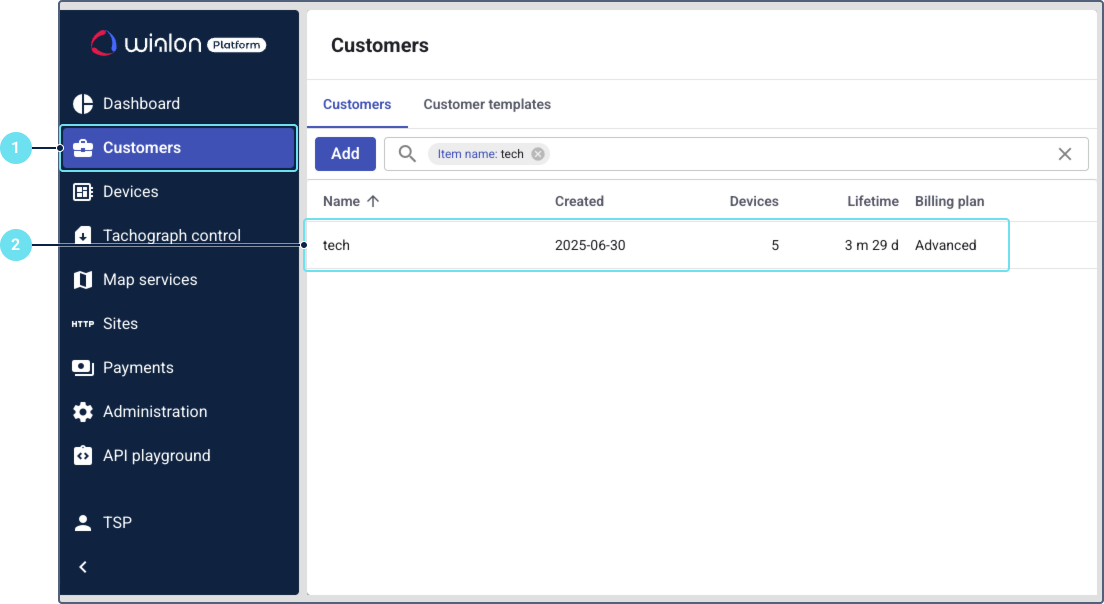
In Wialon Platform Studio, navigate to the Customers page.
-
Select the customer for whom you want to configure the automation.
-
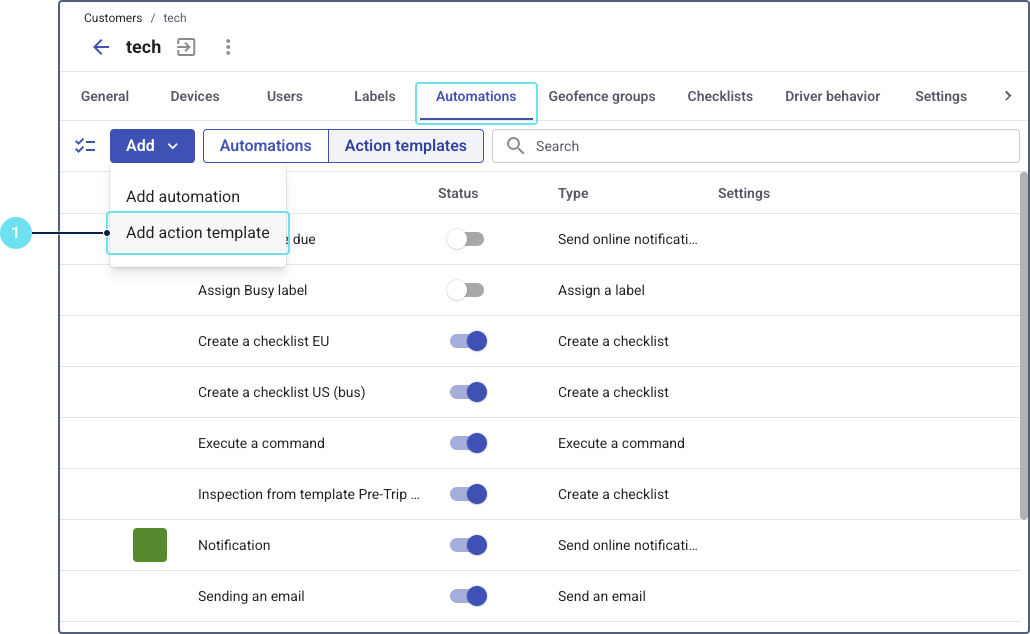
Navigate to the Automations tab.
Step 2: Creating an action template
Before creating an automation, you must create an action template with the Create a task action.
-
On the Automations tab, click the Add button and select Add action template to create a new action template.
-
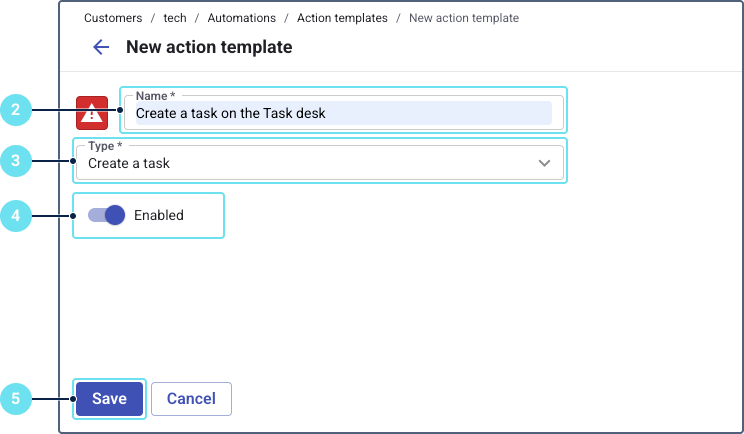
In the Name field, enter a descriptive name for the action template (for example, “Create a task on the Task desk”).
-
From the Type dropdown list, select Create a task.
-
Ensure the Enabled toggle is switched on.
-
Click Save.
Step 3: Creating automation
After creating the Create a task action template, you can create an automation that uses this template to generate tasks on the Task desk page.
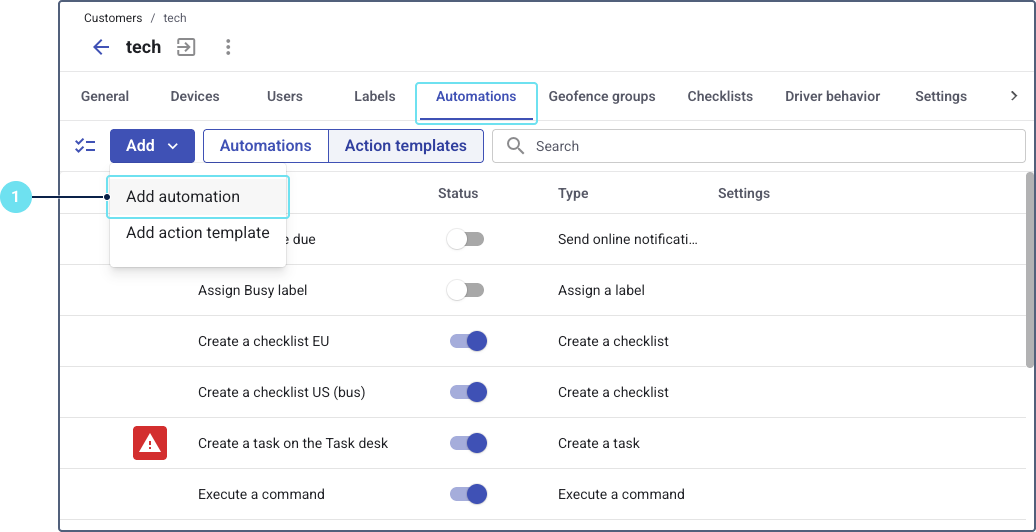
- On the Automations tab, click the Add button and select Add automation to create a new automation.
- Configure the following parameters for the new automation:

- Name: Enter a descriptive name for the automation (for example, “SOS button pressed” or “Vehicle outside geofence”).
- Ensure the Enabled toggle is switched on.
- Select an Automation type that will trigger the incident. You can use only those automation triggers that have a clearly defined start and end time for an event:
- Connection loss: To create a task if a device stops sending data for a specified duration.
- Logical expression: To define complex conditions based on telemetry data (for example, speed exceeding a limit, specific sensor values).
You can’t use any other automation types for task creation.
- Configure the parameters specific to the chosen automation type. For example, for Connection loss, specify the Minimum duration of connection loss. For more details, see Automation types and parameters.
- On the Associated action templates tab, click Link action template.
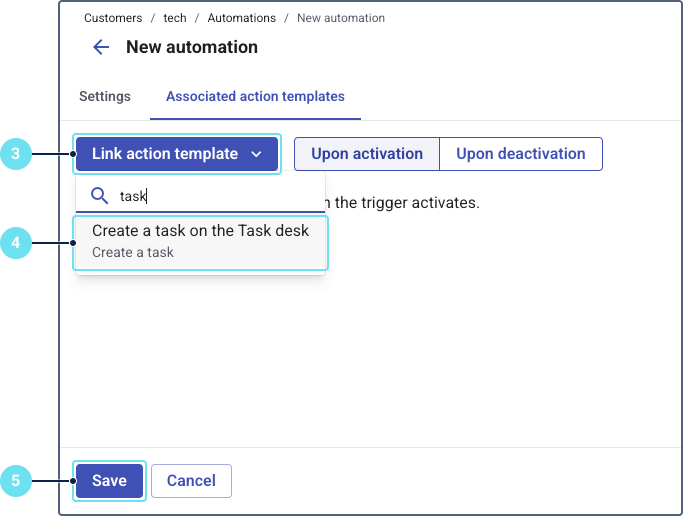
- From the dropdown list, select the action template you created earlier.
- In the Text field, you can customize the note that will appear in the task. Use the available placeholders to include dynamic information, such as the device name or the duration of the event. For more details, see Using placeholders in the text message.
- Click Save.
Once the automation is active and its trigger conditions are met, a new task will automatically be created and displayed on the Task desk page in Wialon Platform FleetSpace for the relevant customer.