Customizing the sidebar menu
Who can do it: Service provider
Where: Wialon Platform FleetSpace
To customize the sidebar menu in Wialon Platform FleetSpace for your customer:
-
Log in as a customer in Wialon Platform FleetSpace.
-
Ensure you are in the necessary workspace. To change the workspace, click the icon
 and then click Workspaces to select the necessary workspace from the list.
 -
Click the icon
 in the sidebar to enable the editor mode.
 -
In the editor mode toolbar, click Menu.
-
In the Menu item section, click the icon
 in the row of the item name you want to change (for example, Dashboard).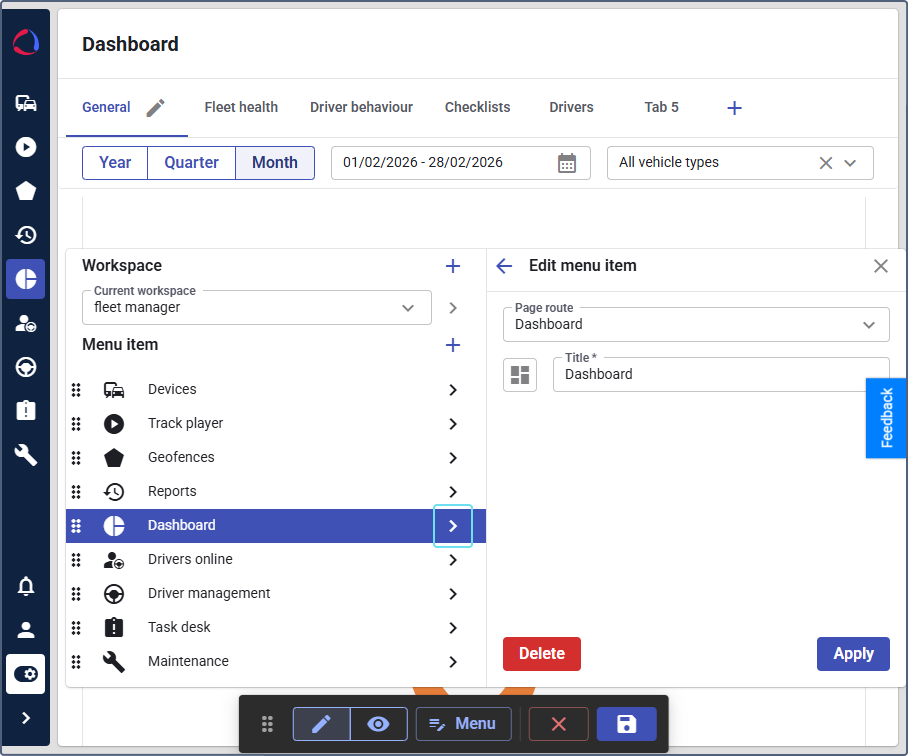
-
To change the page location in the sidebar menu, drag and drop it in the Menu item section.
-
In the Edit menu item window, enter the new name for the Dashboard section in the Title field (for example, Overview).
-
Modify the icon of the page if needed.
-
Click Apply in the menu.
-
Click Save in the editor mode toolbar.