Managing devices in bulk
Who can do it: Service provider
Where: Wialon Platform Studio
Bulk actions allow you to quickly apply changes to multiple devices simultaneously.
You can perform bulk actions on the Devices and on the Customers pages. The actions apply to the devices you select from the list.
Using bulk actions on the “Devices” page
Bulk actions on the Devices page allow managing all the devices of the service provider. You can filter the list of devices to perform bulk actions with the devices that share common attributes.
To access bulk actions on the Devices page:
-
Go to the Devices page.
-
Apply the filters to the devices list, if necessary.
-
Click the icon
 to select devices.
 -
Click Bulk action.
You can perform the following actions:
- Apply telemetry presets for the selected devices
- Apply sensor templates for the selected devices
- Move devices to a customer
- Delete devices
Applying a telemetry preset to devices
A telemetry preset is a reusable configuration that collects sensor templates. Applying a telemetry preset ensures standardized sensor configuration across many devices of the same or similar model.
To apply a telemetry preset to several devices:
-
Access the bulk actions menu on the Customers or on the Devices page.
-
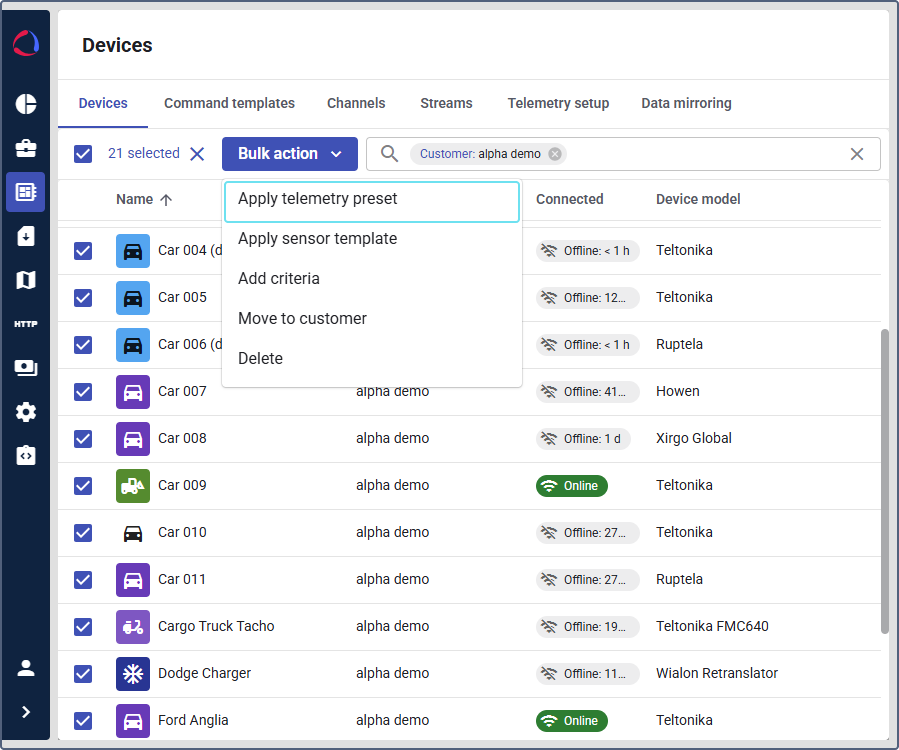
Select Apply telemetry preset from the dropdown menu.
-
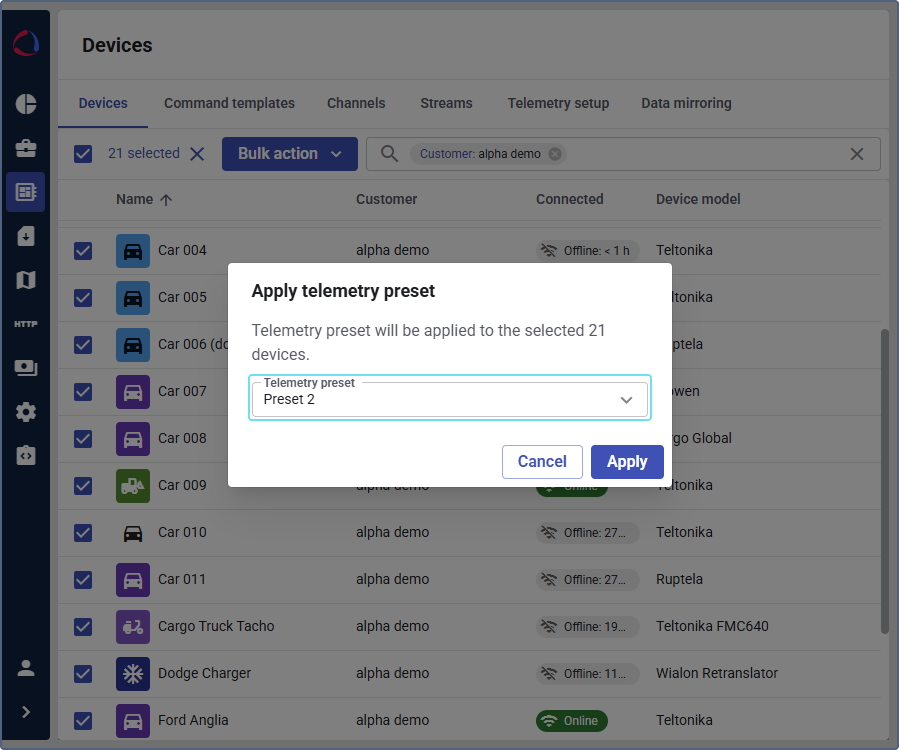
Select the required telemetry preset from the list.
-
Click Apply.
The selected collection of sensor configurations is now set for all selected devices.
Applying a sensor template to sensors
A sensor template is a predefined configuration that specifies how a device’s sensor data should be interpreted.
-
Access the bulk actions menu on the Customers or on the Devices page.
-
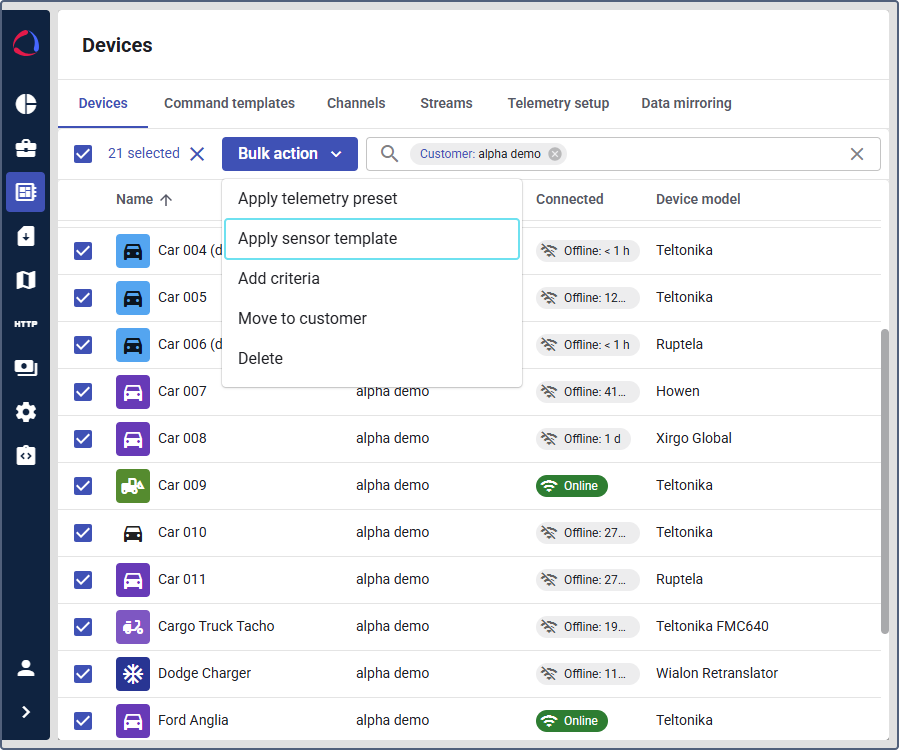
Select Apply sensor template from the dropdown menu.
-
Select the required sensor template from the list.
-
Click Apply.
The sensor configurations are now applied to the selected devices.
Moving devices to a customer
You can assign or reassign one or more devices from their current customer to a different one.
-
Access the bulk actions menu on the Customers or on the Devices page.
-
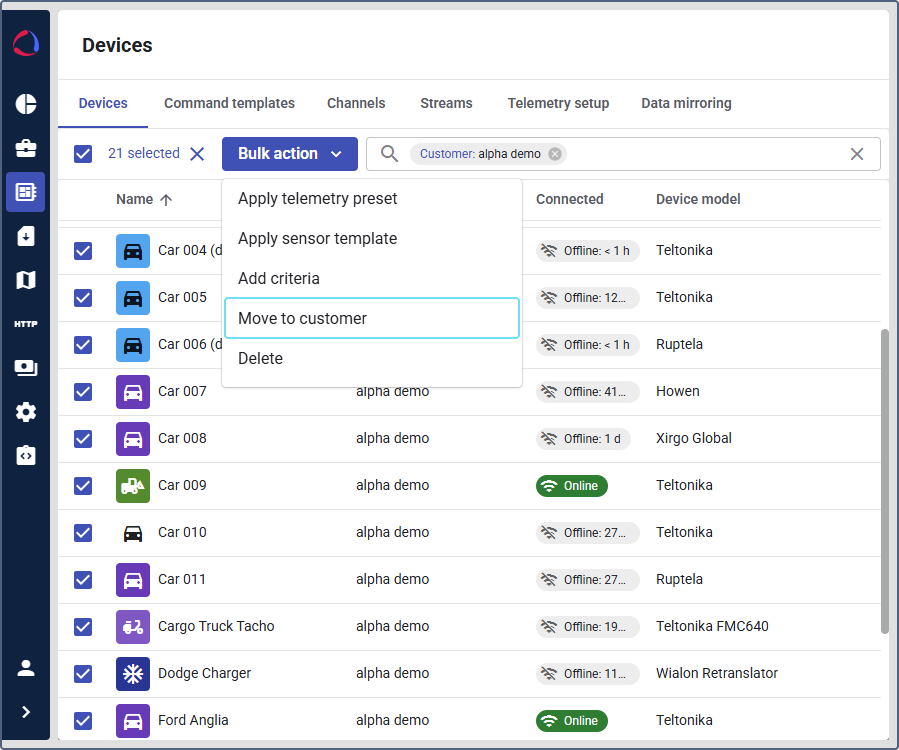
Select Move to customer from the dropdown menu.
-
Select the destination customer from the list.
-
Click Move.
The selected devices are now assigned to the customer.
Deleting devices
This action permanently removes the selected devices from the system.
-
Access the bulk actions menu on the Customers or on the Devices page.
-
Select Delete from the dropdown menu.

-
In the confirmation window, click Delete to confirm.
This action is irreversible.
Managing customer devices in bulk
Bulk actions on the Customers page allow managing the devices belonging to the selected customer.
To access bulk actions on the Customers page:
-
Go to Customers.
-
Select the customer who owns the devices you want to manage.
-
Navigate to the Devices tab.
-
Click the icon
to select the devices. -
Click Bulk action.
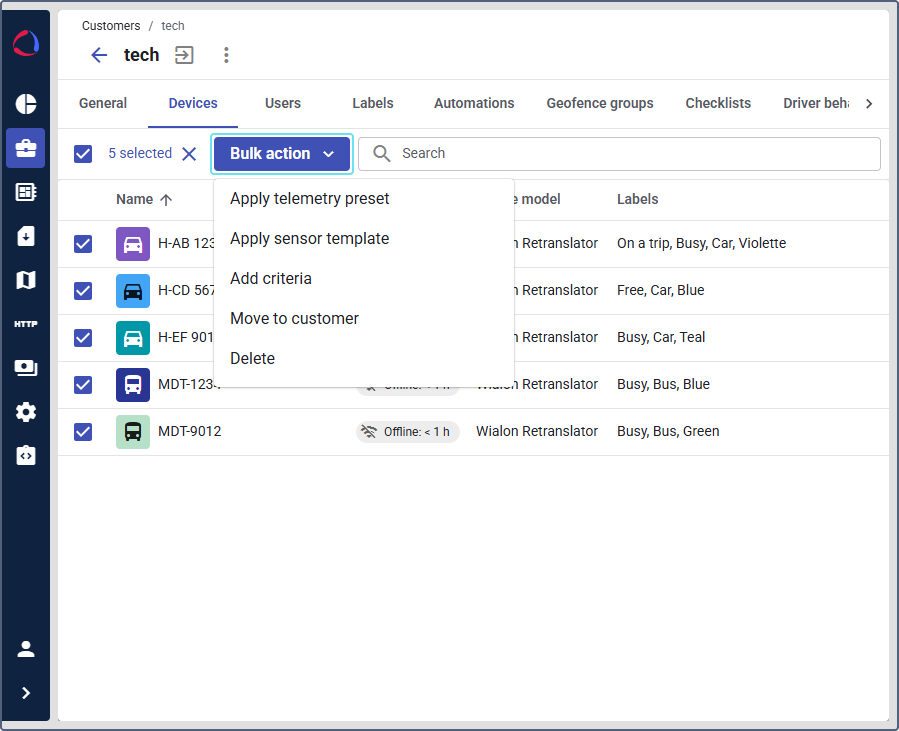
Use the same instructions for the bulk actions on the Devices page to perform the following actions with the customer devices:
- Apply telemetry presets for the selected devices of the customer
- Apply sensor templates for the selected devices of the customer
- Move devices to another customer
- Delete devices
You can also assign driving behavior criteria to the selected devices of the customer.
Assigning driver behavior criteria
This action is available only on the Customers page.
This action allows you to apply a consistent set of driver behavior criteria, for example, for harsh braking or speeding to multiple devices at once.
-
Go to the Customers page.
-
Select the customer who owns the devices for which you want to assign the driver behavior criteria template.
-
On the Devices page, click the icon
and select the checkboxes next to the devices you want to update. -
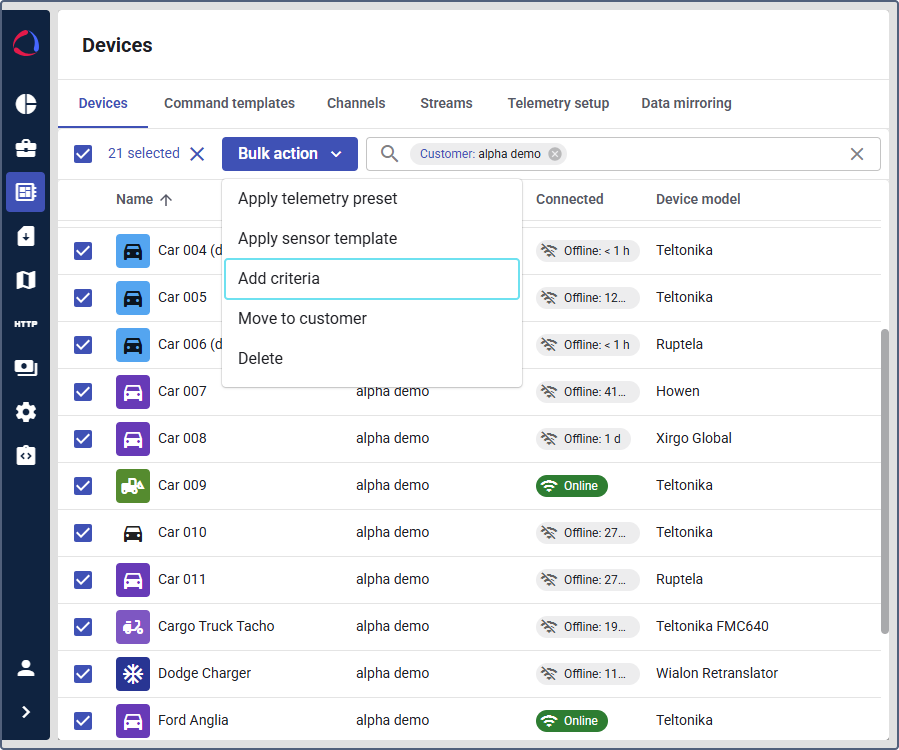
Click the Bulk action button.
-
Select Add criteria from the dropdown menu.
-
Select the required driver behavior criteria.
-
Click Apply.
The criteria templates stored in the customer are now applied to the selected devices.