Enabling and disabling private mode automatically according to schedule
Who can do it: Service provider
Where: Wialon Platform Studio
You can automate the vehicle private use so that the private mode turns on for selected vehicles on a schedule. This helps customers ensure that vehicle location is hidden during non-working hours or other predefined periods.
This page shows how to enable private mode every weekday from 6:00pm to 8:00pm using the Schedule automation and the Start private mode action template.
To configure a workflow that enables private mode automatically based on the schedule, follow the next steps:
- Create a Start private mode action template.
- Create a Schedule automation (weekdays at 6:00pm).
- Link the automation to the action template.
Step 1: Create a “Start private mode” action template
First, create an action template that will turn the private use on and off for the selected vehicles:
- In Wialon Platform Studio, navigate to the Customers page.
- Select a customer from the list to open their details.
- Go to the Automations tab.
- On the Automations tab, click Add.
- Select Add action template.
- In the Name field, enter a name, for example,
Car private use after working hours. - In the Type field, select Start private mode.
- In the Devices field, select the devices for which this action enables private mode.
- Make sure the action template is Enabled.
- Click Save.
Step 2: Create a “Schedule” automation
To create a schedule that acts as a trigger for the action template, follow the next steps:
-
On the Automations tab, click Add.
-
Select Add automation.
-
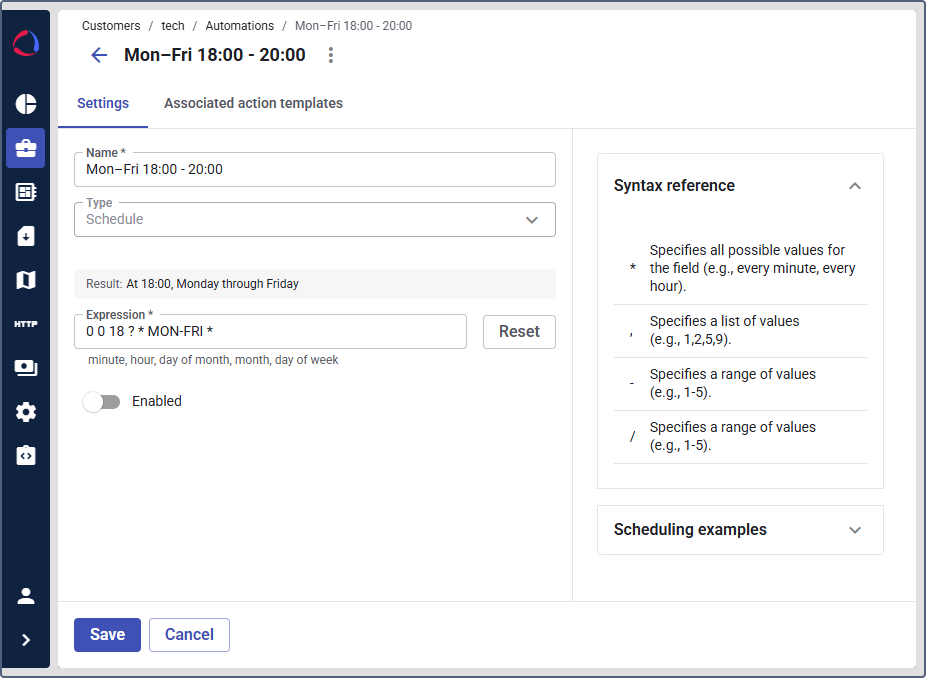
In the Name field, enter a name, for example,
Mon–Fri 6 - 8. -
In the Automation type field, select Schedule.
-
In the Expression field, specify the cron expression for weekdays at 6:00pm:
0 0 18 ? * MON-FRI * -
Enable the automation.
Before saving the automation workflow, it is necessary to associate it with the created action template.
Step 3: Link the automation to the action template
To finish the automation workflow:
-
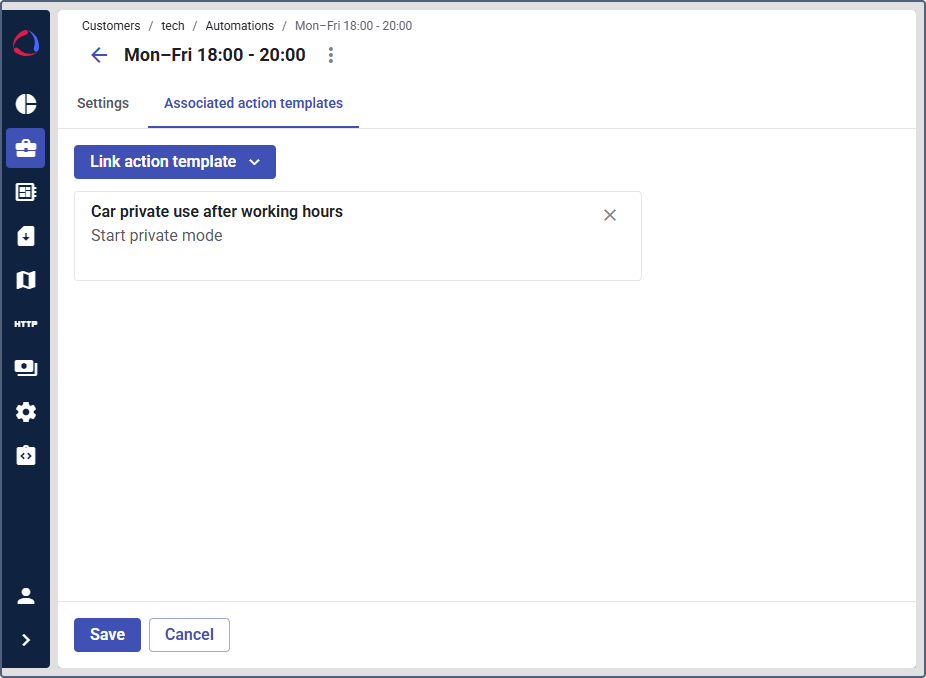
In your automation, go to the Associated action templates tab.
-
Click Link action template.
-
Select the Start private mode action template you created in Step 1.
-
Click Save.
Every weekday at 6:00pm, the automation triggers the Start private mode action template.
Disabling private mode according to a schedule
To configure automatic deactivation of private mode, follow the next steps:
- Create an End private mode action template for the same devices. Make sure the action template is enabled.
- Create another Schedule automation that will trigger the end of the private use. For 8:00pm on weekdays, enter
0 0 20 ? * MON-FRI *in the Expression field. Make sure the automation is enabled. - Link the automation to the action template.
- Save the automation workflow.
Now private mode is enabled for the selected vehicles for 2 hours, and then it turns off automatically.