Configuring private mode automation based on logical expressions
Who can do it: Service provider
Where: Wialon Platform Studio
You can enable private mode automatically when a device meets specific conditions. This is useful when customers want private mode to turn on without a schedule. For example, when a vehicle is moving in an unauthorized area.
This page describes how to configure a Logical expression automation and link it to a Start private mode action template.
To configure a workflow that enables private mode automatically when the vehicle is moving in an unauthorized area, follow the next steps:
- Create a Start private mode action template.
- Create an automation with a logical expression.
- Link the automation to the action template.
Step 1: Create a “Start private mode” action template
First, create an action template that will turn on the private use for the selected vehicles:
- In Wialon Platform Studio, navigate to the Customers page.
- Select a customer from the list to open their details.
- Go to the Automations tab.
- On the Automations tab, click Add.
- Select Add action template.
- In the Name field, enter a name, for example,
Start private mode by parameter. - In the Type field, select Start private mode.
- Make sure the action template is Enabled.
- Click Save.
Step 2: Create an automation with a logical expression
To create a condition that acts as a trigger for the action template, follow the next steps:
-
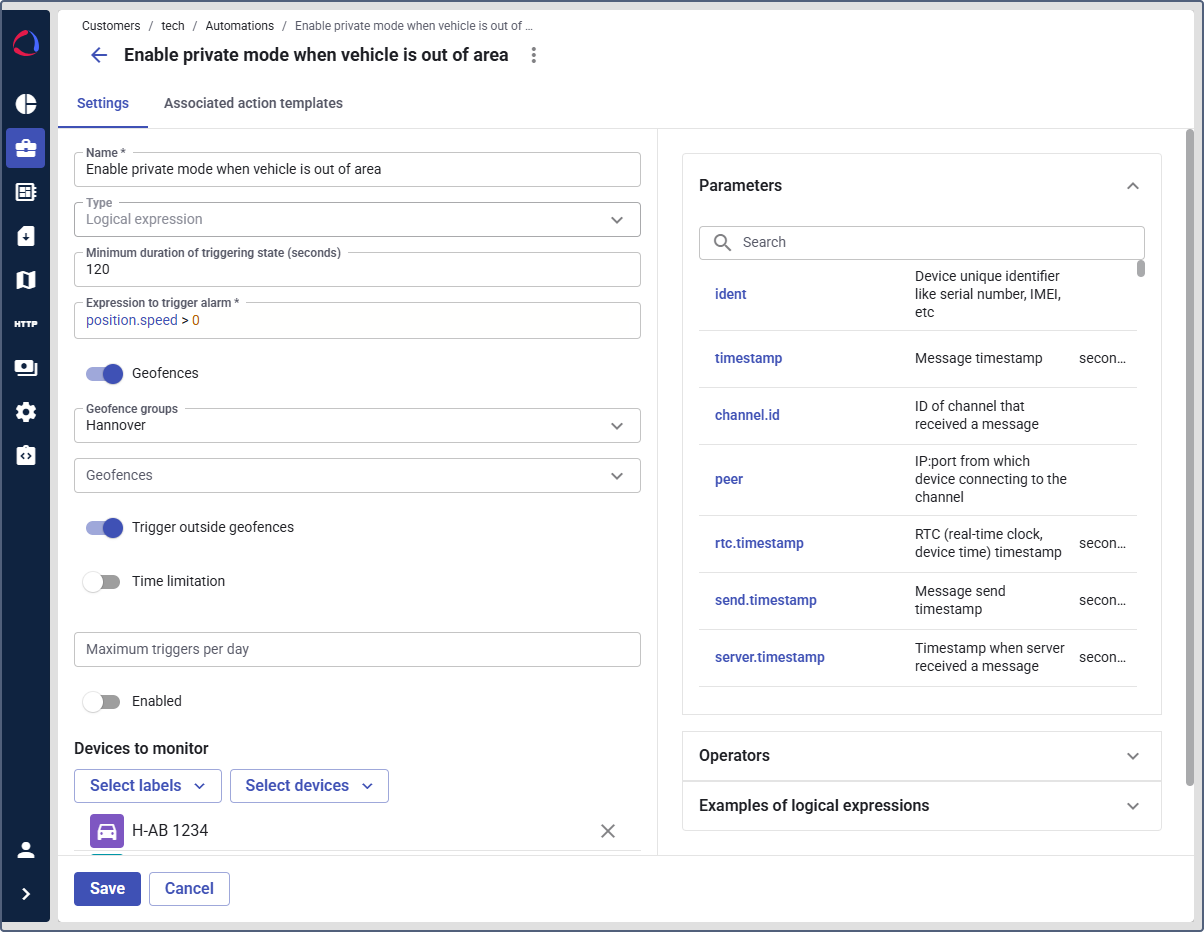
In the customer Automations tab, click Add and select Add automation.
-
In the Name field, enter a name, for example,
Enable private mode when vehicle is out of area. -
In the Automation type field, select Logical expression.
-
In the Minimum duration of alarm state field, specify how long the condition must remain true before the automation triggers (in seconds). This helps avoid false triggers from short fluctuations. For example,
120. -
In the Expression to trigger alarm field, enter an expression based on the parameters your device sends to signal motion, for example
position.speed > 0. -
Toggle on and configure the Geofence option:
- Select geofence groups or separate geofences that you consider as an authorized area.
- Enable the Trigger outside geofences option.
Thus the automation triggers only when the vehicle is outside the selected geofences (when it leaves the authorized area).
-
(Optional): In the Maximum triggers per day field, enter the maximum number of times the automation should trigger.
-
Enable the automation.
-
In Devices to monitor, select the devices or labels, or both, to which this automation applies.
Before saving the automation workflow, it is necessary to associate it with the created action template.
Step 3: Link the automation to the action template
To finish the automation workflow:
-
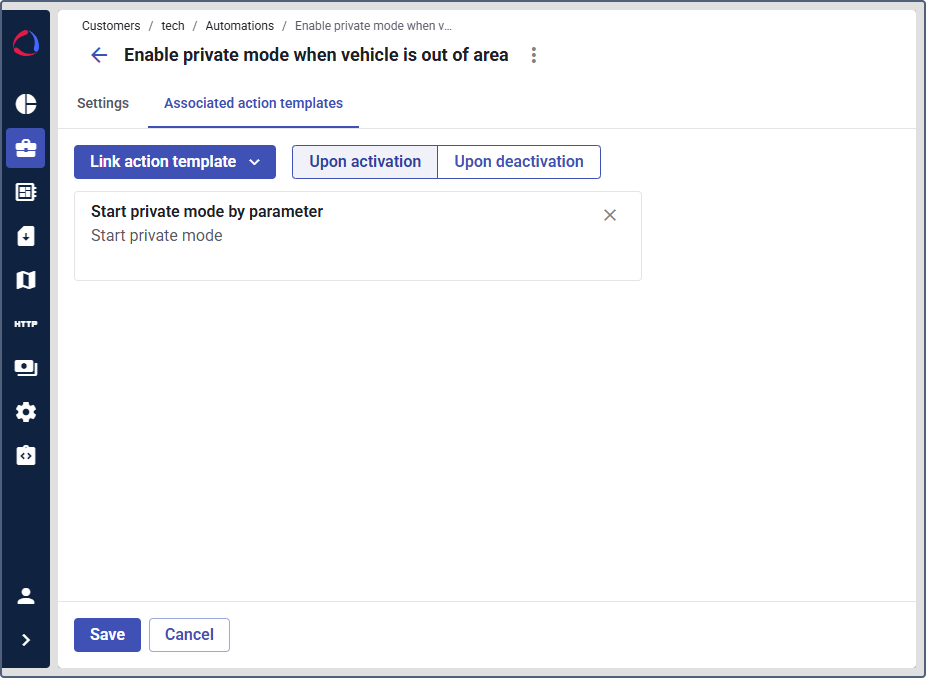
In your automation, go to the Associated action templates tab.
-
Click Link action template.
-
Select the Start private mode action template you created.
-
Click Save.
When the device starts sending telemetry that matches the logical expression, Wialon Platform triggers the Start private mode action template and enables private mode. While private mode is active, GPS-dependent data is not registered and can’t be restored (see Enabling private use mode for a device).
Disabling private mode automatically using logical expressions
Since the device location is hidden while the private mode is on, it can’t automatically turn off based on the location when the device goes back to the authorized geofence. To disable private mode within this automation, you can set the Time limitation option to turn it off after a certain period of time.
To disable private mode automatically based on telemetry data, you can configure a Logical expression automation that controls a specific parameter, such as an alarm message, for example, alarm.event == true. On the Associated action templates tab, link the End private mode action. The private mode will be disabled when the device sends an alarm message.