Teltonika FMB920: Configuration for use in Wialon
This guide describes how to configure Teltonika FMB920 to use it in Wialon.
You can request Wialon trial account here.
Quick setup
In order to point the device to your Wialon account, follow the steps below.
- Connect the device to Teltonika Configurator on your PC.
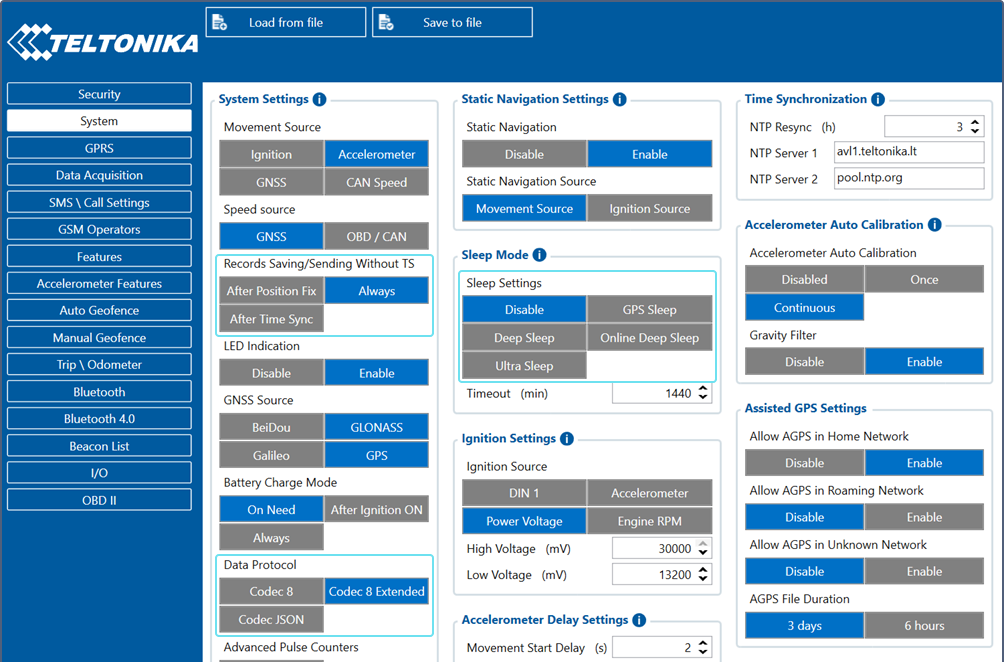
- On the System tab, configure the following settings:
a. Set Recordings Saving/Sending Without TS to Always.
b. Set the data protocol to Codec 8 Extended. The Teltonika Codec 8 protocol is also supported, but allows sending a fewer number of parameters.
c. Disable the Sleep mode.
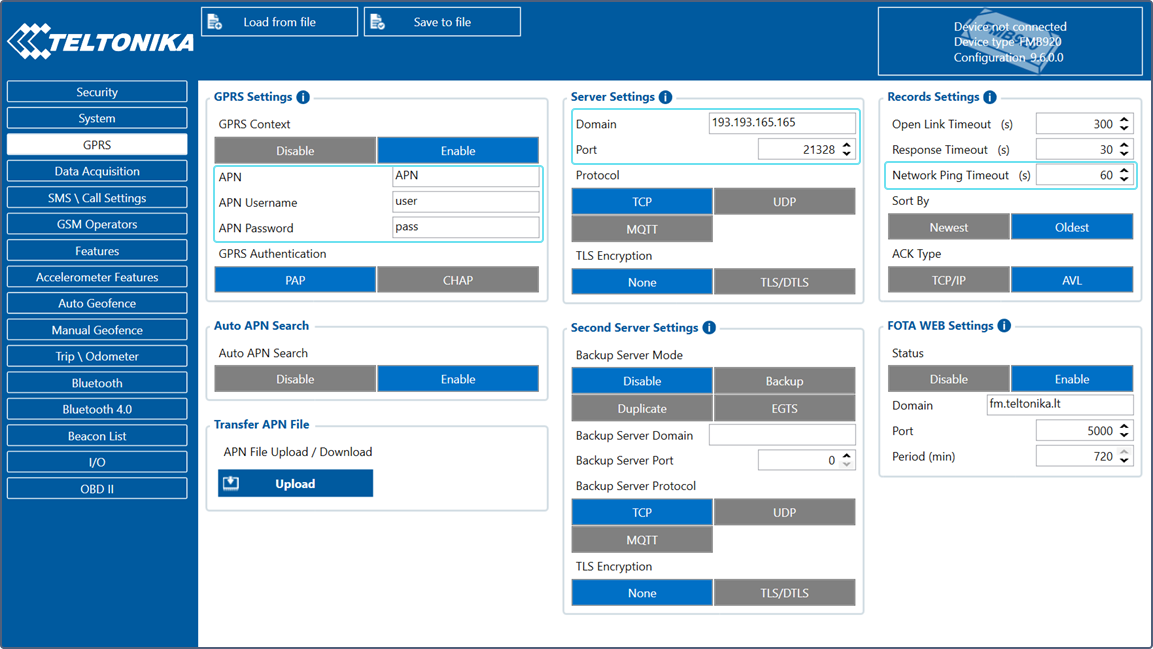
- On the GPRS tab, configure the following settings:
a. Specify the APN settings: APN, username and password (this information can be requested from your SIM provider).
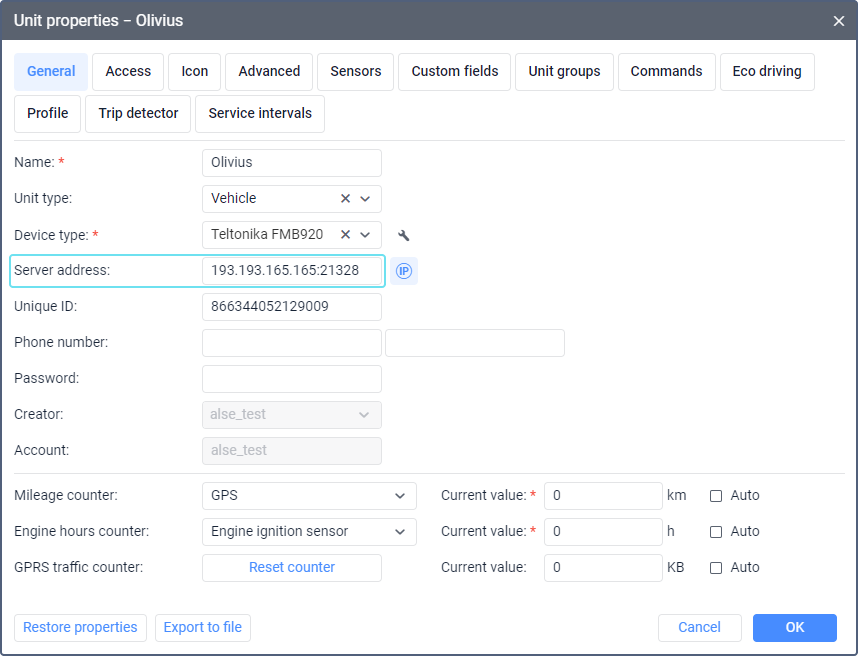
b. Set the domain and port specified in the unit properties in Wialon.
c. Set the network ping timeout to 60 seconds.
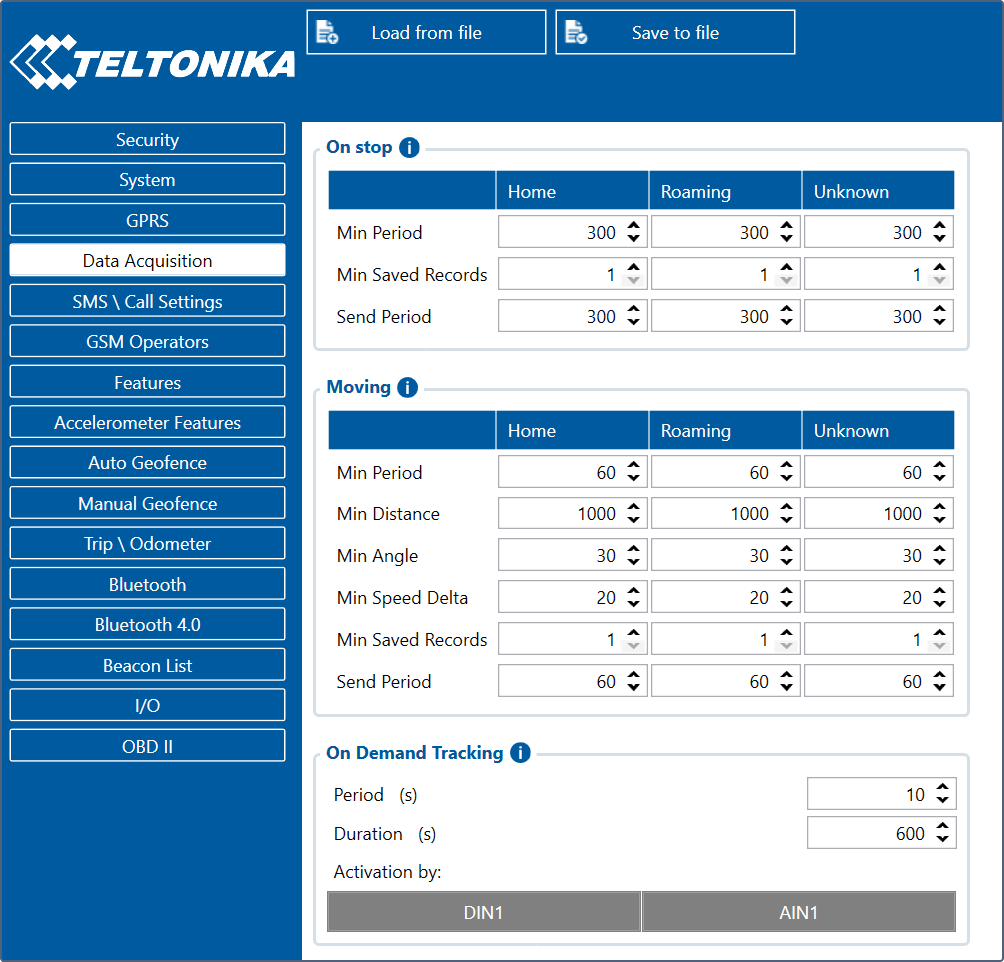
- On the Data acquisition tab, set the intervals for sending data based on time period, distance travelled, angle and speed changes. You can see the recommended settings in the screenshot:
- On the I/O tab, select the parameters that you would like to get and set their priority from None to Low. If you don’t need certain parameters, set their priority to None.
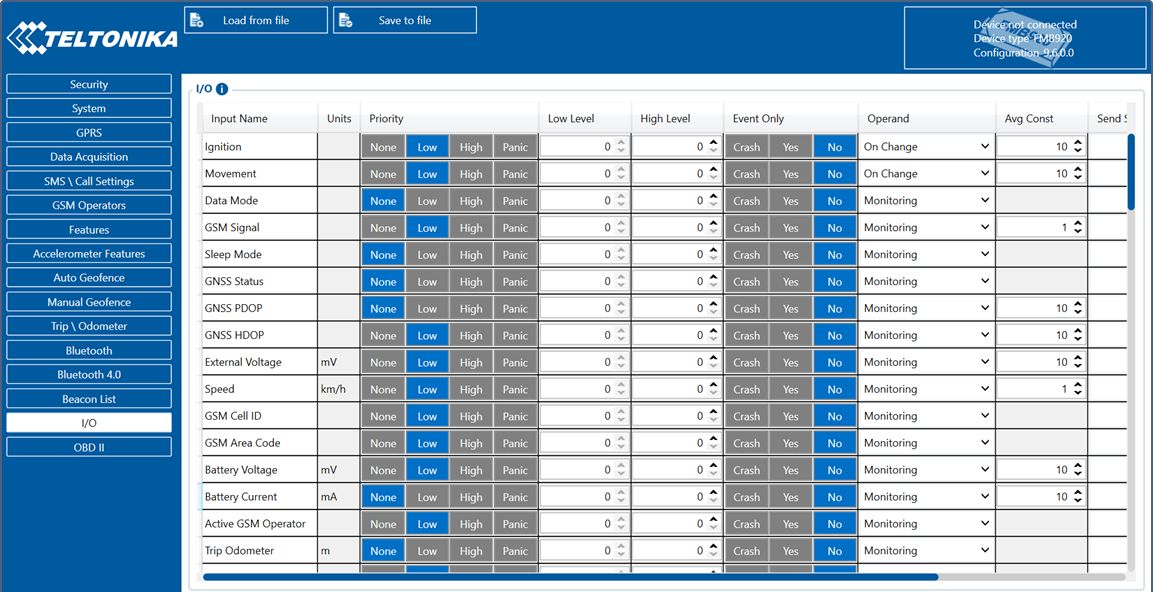
- On the OBDII tab, do the same as on the I/O tab.
- Use the device IMEI as the unique ID in Wialon.
The Static navigation function can cause troubles with GPS location updates. If you experience such problems, try disabling the Static navigation function on the System tab.
Additional device settings
The additional device settings are available in the unit properties upon clicking on the icon  next to the Device type field.
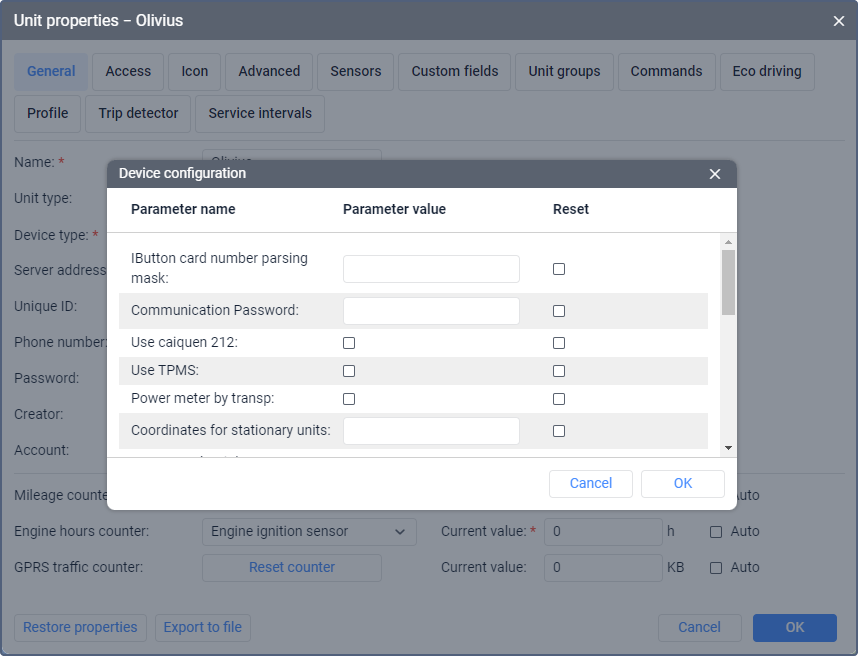
The available settings are as follows:
| Setting | Description |
|---|---|
| IButton card number parsing mask | This field is used to extract the iButton card number from the raw identifier by selecting bytes in the required order. Specify the order of bytes separated by a comma. For example: 6,5,4. If the mask is specified, the system adds two parameters to the message: card_num_hex (hexadecimal) and card_num (decimal). The original parameters (for example, avl_driver, drvr_code) remain unchanged. Example: drvr_code=01F8E744100000C1 is split into bytes 01 F8 E7 44 10 00 00 C1. With mask 4,3,2, the system takes byte 4 (44), then byte 3 (E7), then byte 2 (F8) and concatenates them, so card_num_hex is 44E7F8. Then card_num is calculated by converting 44E7F8 from hexadecimal to decimal, so card_num=4515832. |
| Communication password | Communication password for special firmwares. Contact the manufacturer for more information. |
| Use caiquen 212 | Enable this option if you are using the Caiquén 212 CANbus interface. |
| Use TPMS | Enable this option if you are using RS-232 TPMS (tyre pressure monitoring system). |
| Power meter by transp | Enable this option if you are using the Pilot PMAC770 power meter. |
| Coordinates for stationary units | If the unit is stationary, specify its coordinates in this field. The coordinates sent by the device will be re-registered, and the coordinates from this field will be pasted instead. |
| Bus Control Unit by transp | Enable this option if you are using the BCUDL bus control unit. |
| Fuel controller by transparent | Enable this option if you are using the RS-232 fuel controller. |
| KN02 MAX by transparent | Enable this option if you are using the KNOV KN02 MAX RFID reader. |
| Getscale GS-404 by transparent | Enable this option if you are using the Getscale GS-404 RFID reader. |
| DZ300 Speed sensor by transp | Enable this option if you are using the DZ300 cement drum sensor for rotation speed. |
| Chafon rfid by transp | Enable this option if you are using the Chafon RFID reader. |
| DualCam connected | Enable this option if you are using Teltonika DualCam. DualCam is connected to FMB125, FMC125, FMB225, and other devices using the RS232 interface. You can find the manufacturer’s instructions here.Not supported by the FMB920 device. |
| ETS RFID Reader by transp | Enable this option if you are using the ETS RFID reader. |
| BSTPL RFID Reader by transp | Enable this option if you are using BSTPL RFID reader. |
| Use JSN-SR04T-2.0 | Enable this option if you are using the JSN-SR0T4-2.0 ultrasonic distance measurement module. |
| Crash trace period(ms) | This period defines how frequently acceleration data is sent upon crash. The additional parameters accel_x, accel_y, and accel_z are registered. You can find the manufacturer’s instructions here. |
| Howen AI Box by transp | Enable this option if you are using the Howen AI Box camera. |
| AM4160 by transp | Enable this option if you are using the Absolut Mobile AM4160 device. |
| Hub 1 Wire by transp | Enable this option if you are using Effortech Hub 1-Wire. |
If you have further questions regarding the device configuration in Wialon, send the request to support@nova-ex.su and specify the following details:
- device type and ID,
- issue description,
- configuration file, if applicable.
For ultimate technical support with hardware setup, we recommend contacting the device manufacturer.
Video: Connecting and configuring FMB920 tracker by Teltonika
This video guide dated 26.03.2021 describes how to connect and configure the FMB920 tracker by Teltonika.
Useful articles and links
Teltonika wiki knowledge base
Wialon help center how-to
Case studies